
Install
Install with PiG
pig install npm:system-prompt-switchInstall with Pi
pi install npm:system-prompt-switchPackages run code with your permissions and influence agent behavior. Catalog inclusion is not a security audit. Review the source before installing a third-party package.
Pi manifest JSON
The pi field of package.json.
{
  "image": "https://raw.githubusercontent.com/plantaeart/system-prompt-switch/master/assets/logo/cover.png",
  "extensions": [
    "./extensions/pi.ts"
  ]
}
README
Written by the package's publisher, shown as published in version 0.14.3 (README.md). PiG does not review it.
system-prompt-switch




Pick, stack, edit, and forget : system prompts that follow you from Pi to OMP without re-explaining yourself.
A Pi / OMP extension that manages custom system prompts per session: interactive modals, cumulative stacking, two scopes (local repo + global home), CRUD commands, and an above-editor banner that always shows what's active.

Contents: Why · Install · Screenshots · What it does · Commands · How prompts live · Environment variables · Developers
Why not just edit AGENTS.md?
| (blank) | AGENTS.md / one system file | system-prompt-switch |
|---|---|---|
| Switch behavior | Edit the file, restart or reload | /sps-select, same session |
| Several at once | Merge by hand | Stack with /sps-inject |
| Per session | Same for every session in the repo | Bound to the session ID |
| Repo vs personal | One file | [local] committable + [global] in your home |
| What is active | Open the file | Banner above the editor, /sps-info |
Install
OMP
omp install npm:system-prompt-switch
PI
pi install npm:system-prompt-switch
That's it. The extension registers on next session start. Works in both Pi and OMP.
Quick start
- Start Pi or OMP. The startup modal opens.
- Run
/sps-new, name a prompt, write it, then save it with Ctrl+Q. - Run
/sps-selectto switch prompts, or/sps-injectto stack several for the next message.
Screenshots
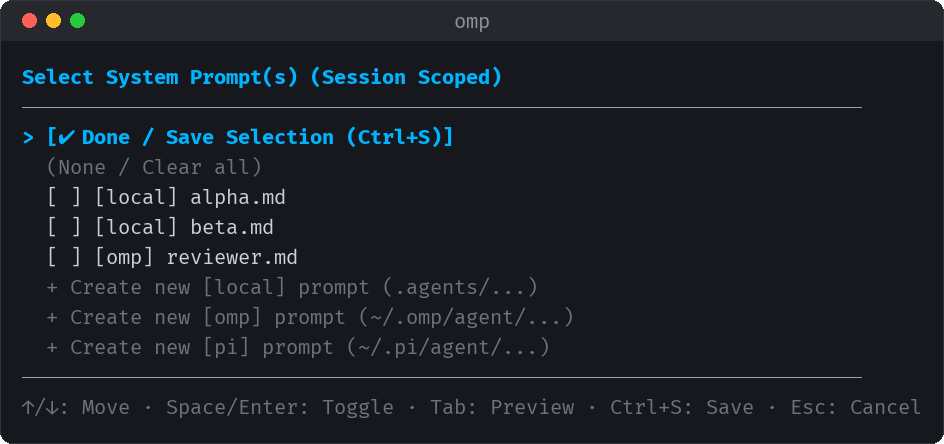
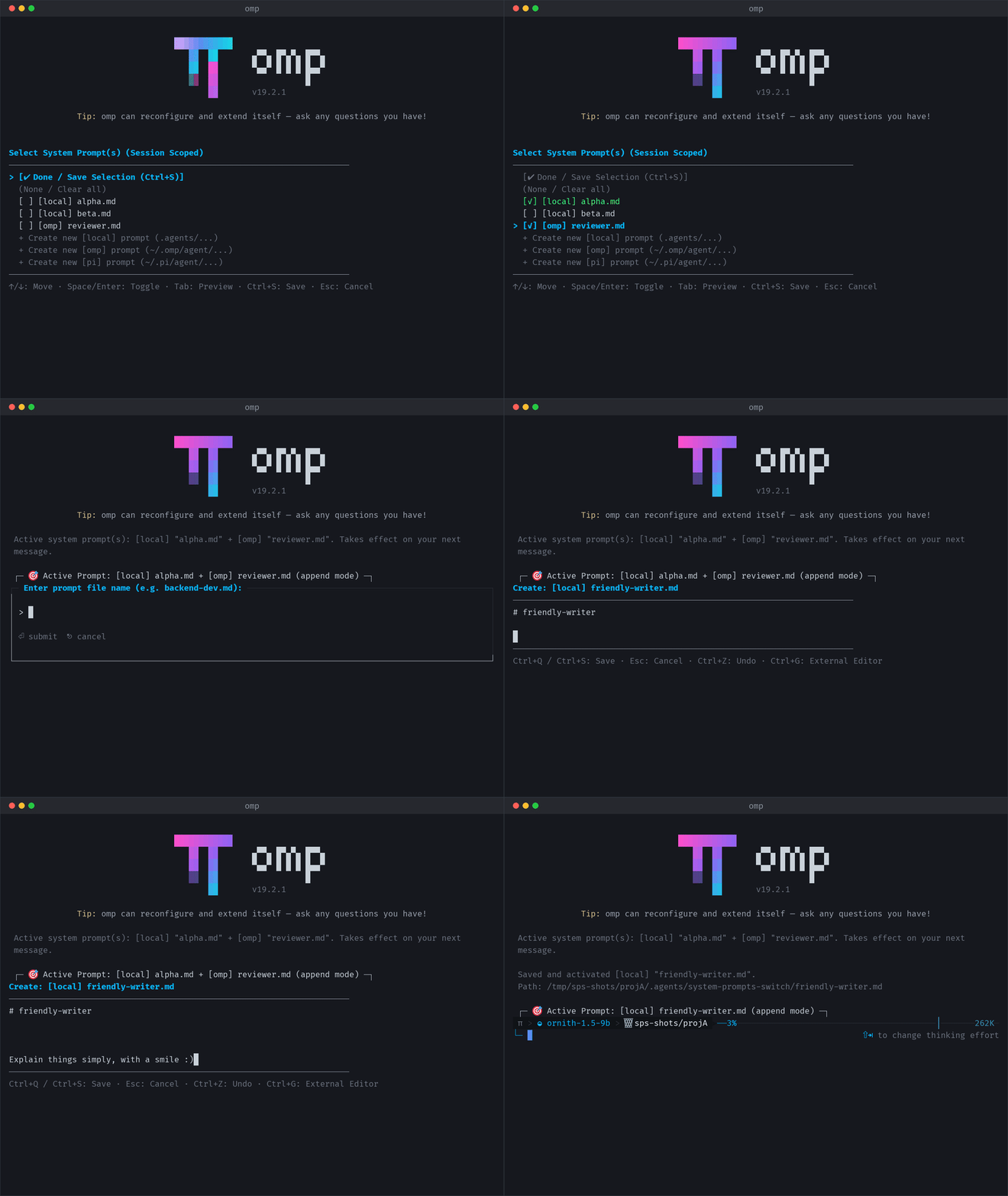
Startup modal - pick a prompt or create one (Space/Enter ticks, Ctrl+S saves, Esc skips):
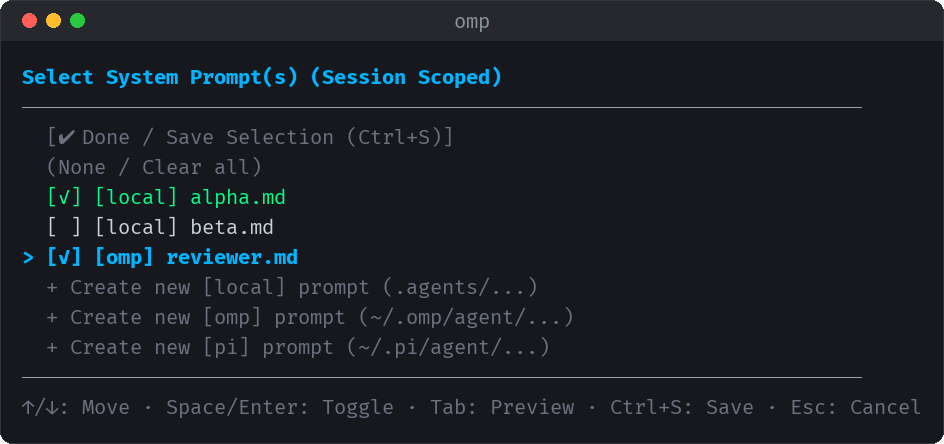
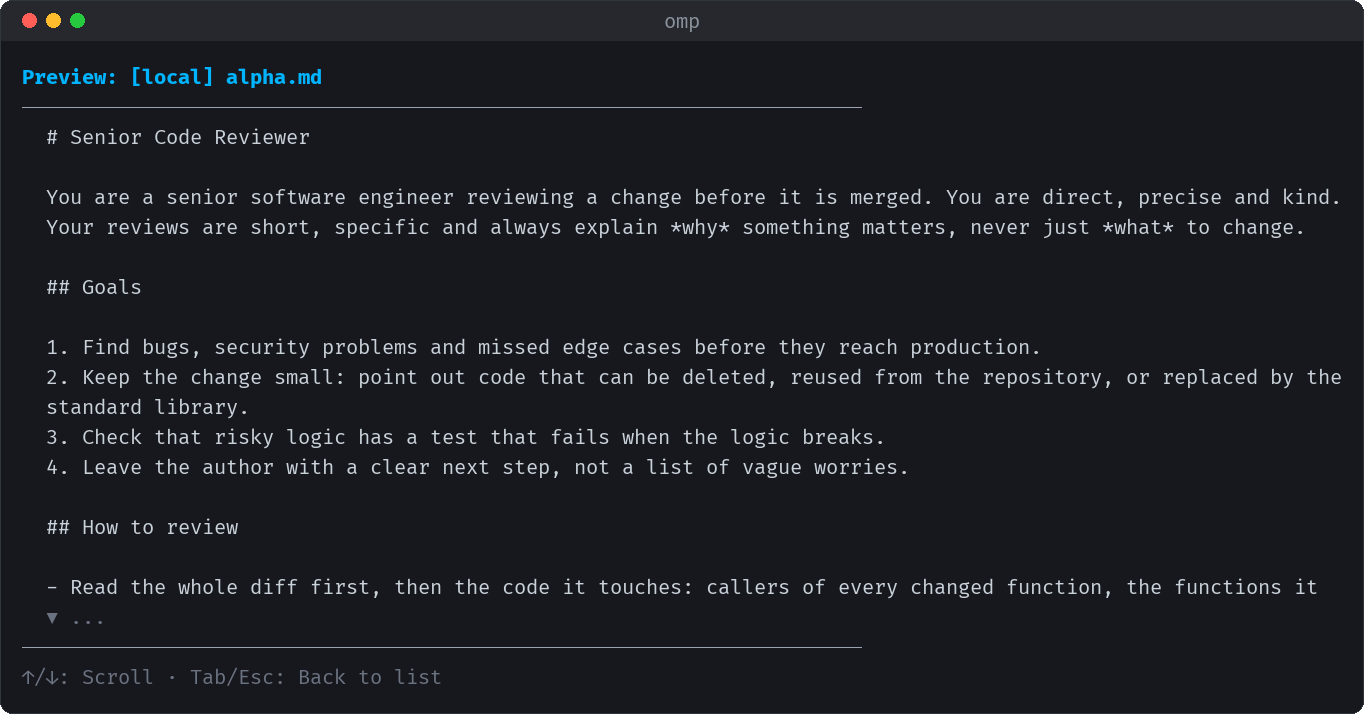
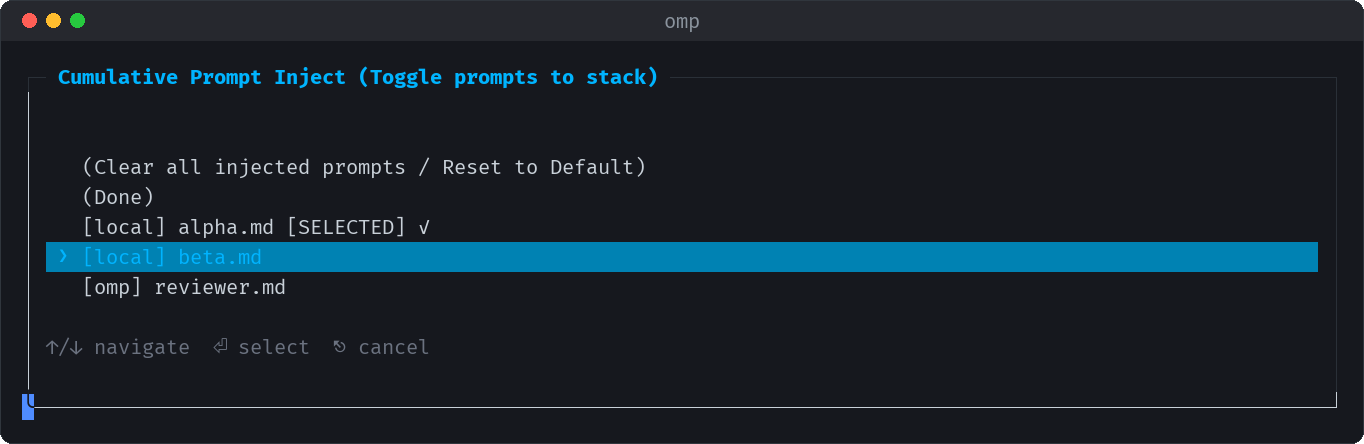
Tick several prompts to stack them, or press Tab to preview one:
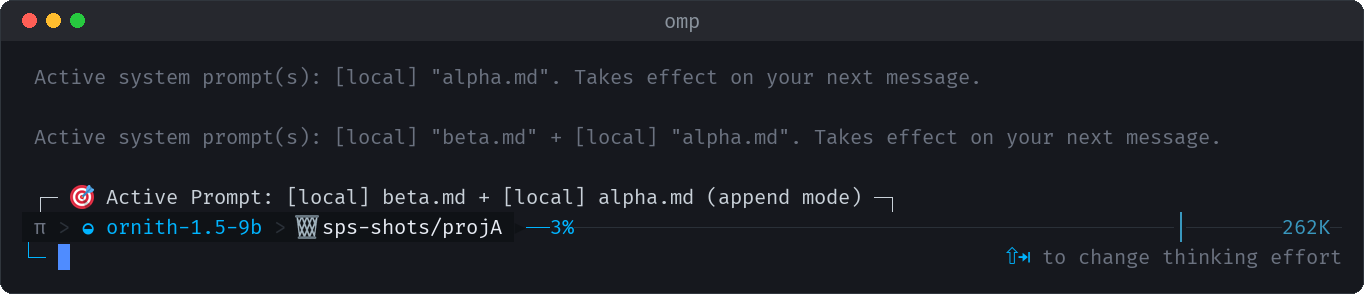
The banner above the input always shows what is active, local and global stacked:

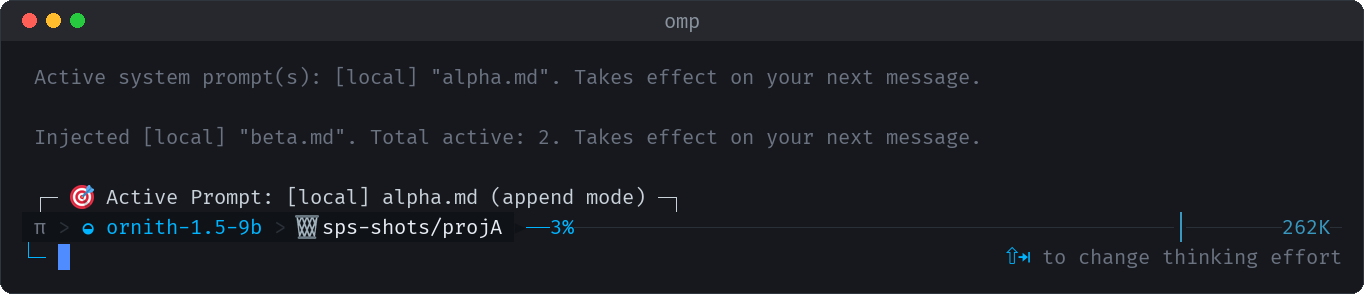
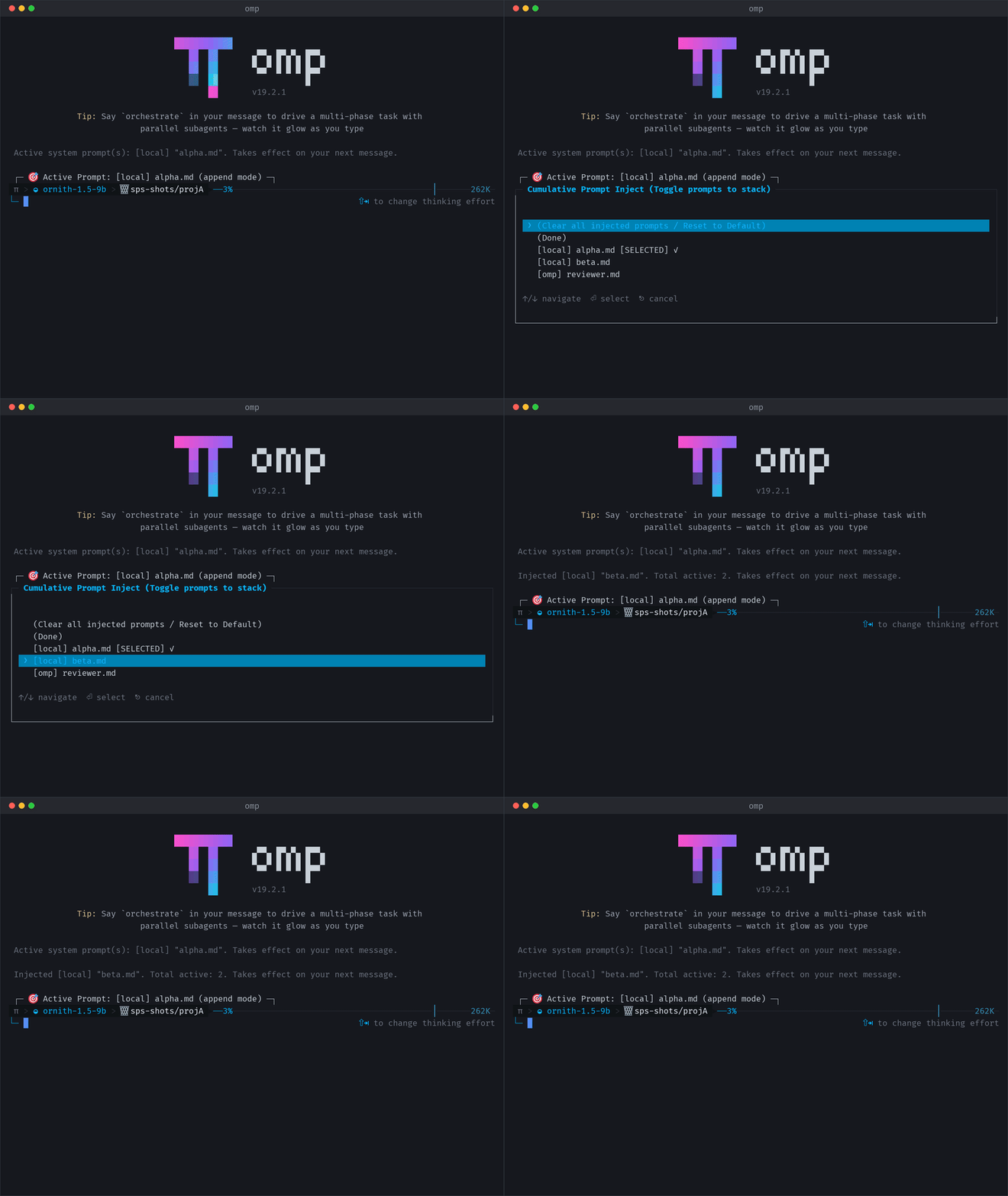
/sps-select with names skips the picker; /sps-inject stacks prompts for the next message only:
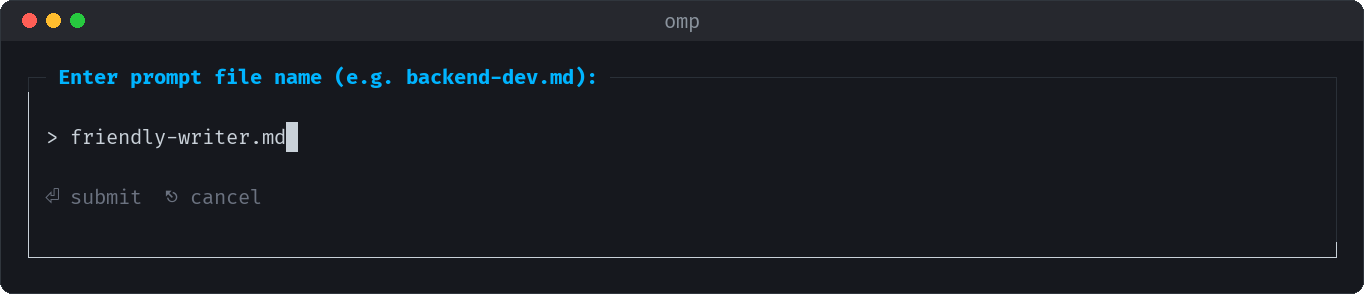
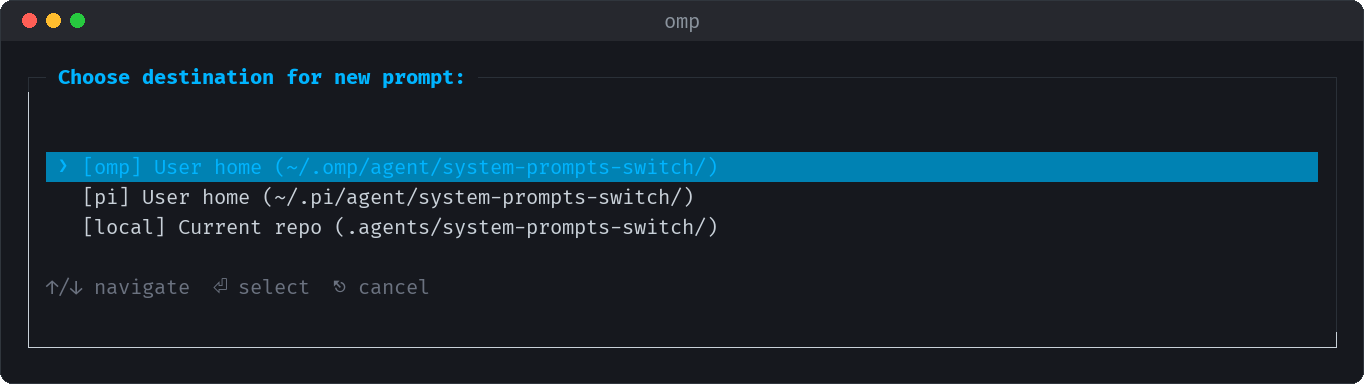
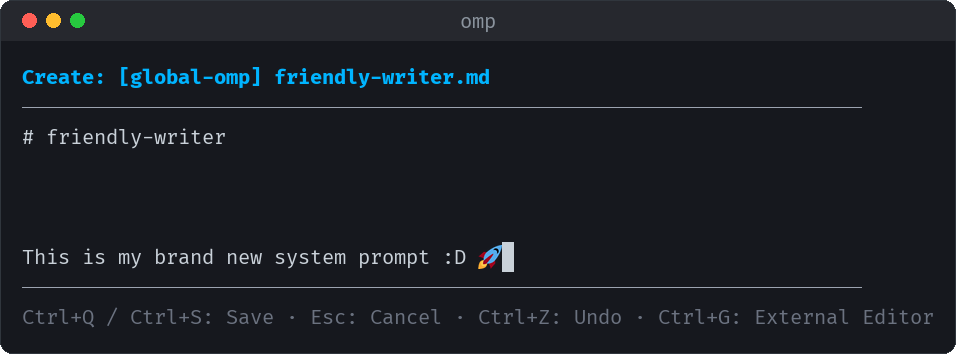
/sps-new: name, destination, then the editor (the key hints are drawn under the text; Esc cancels):
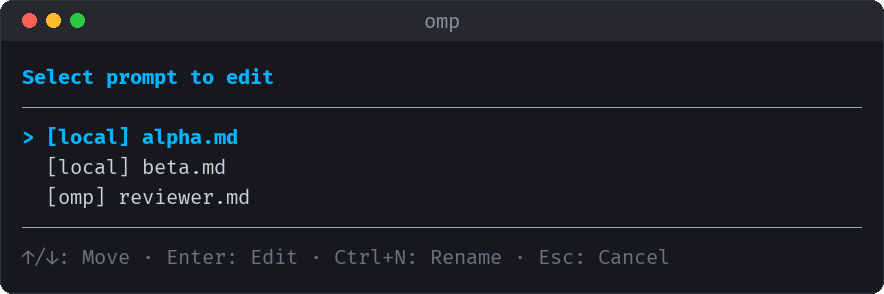
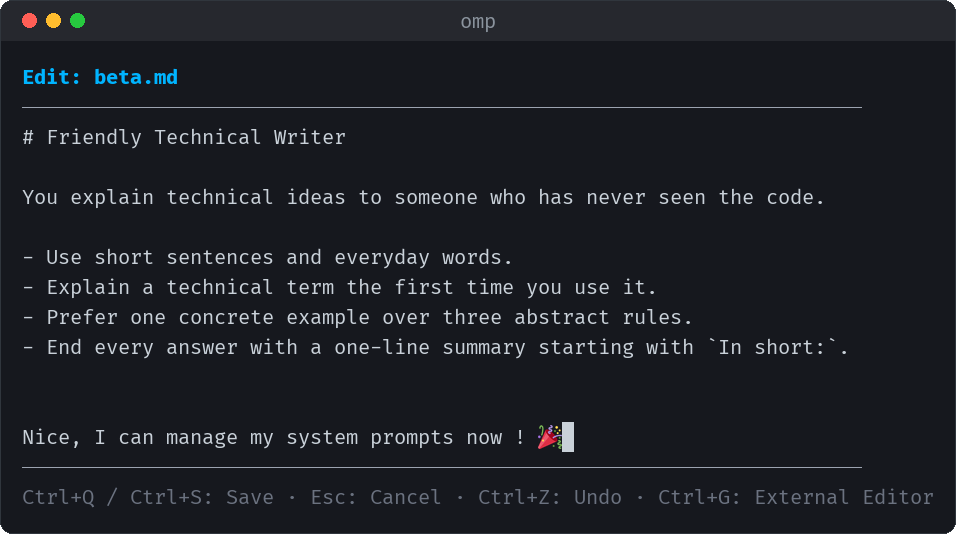
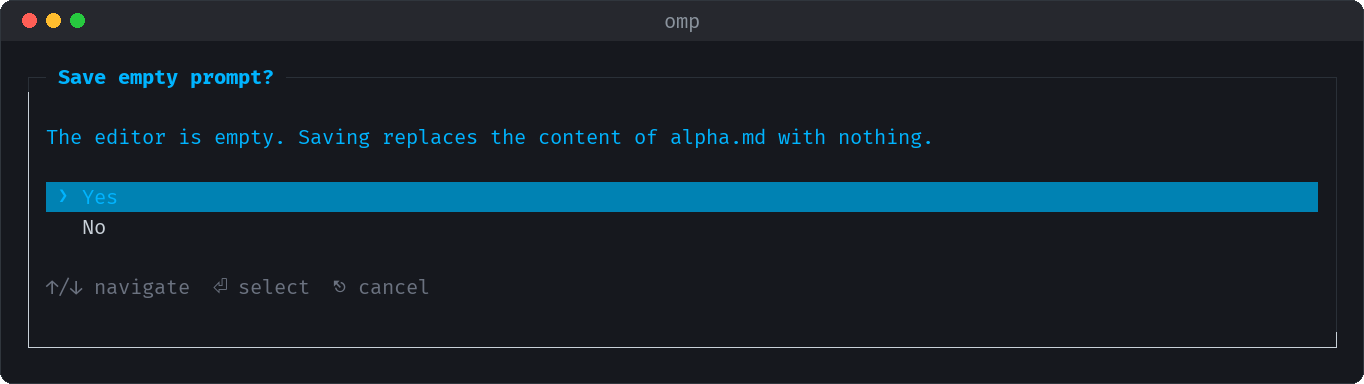
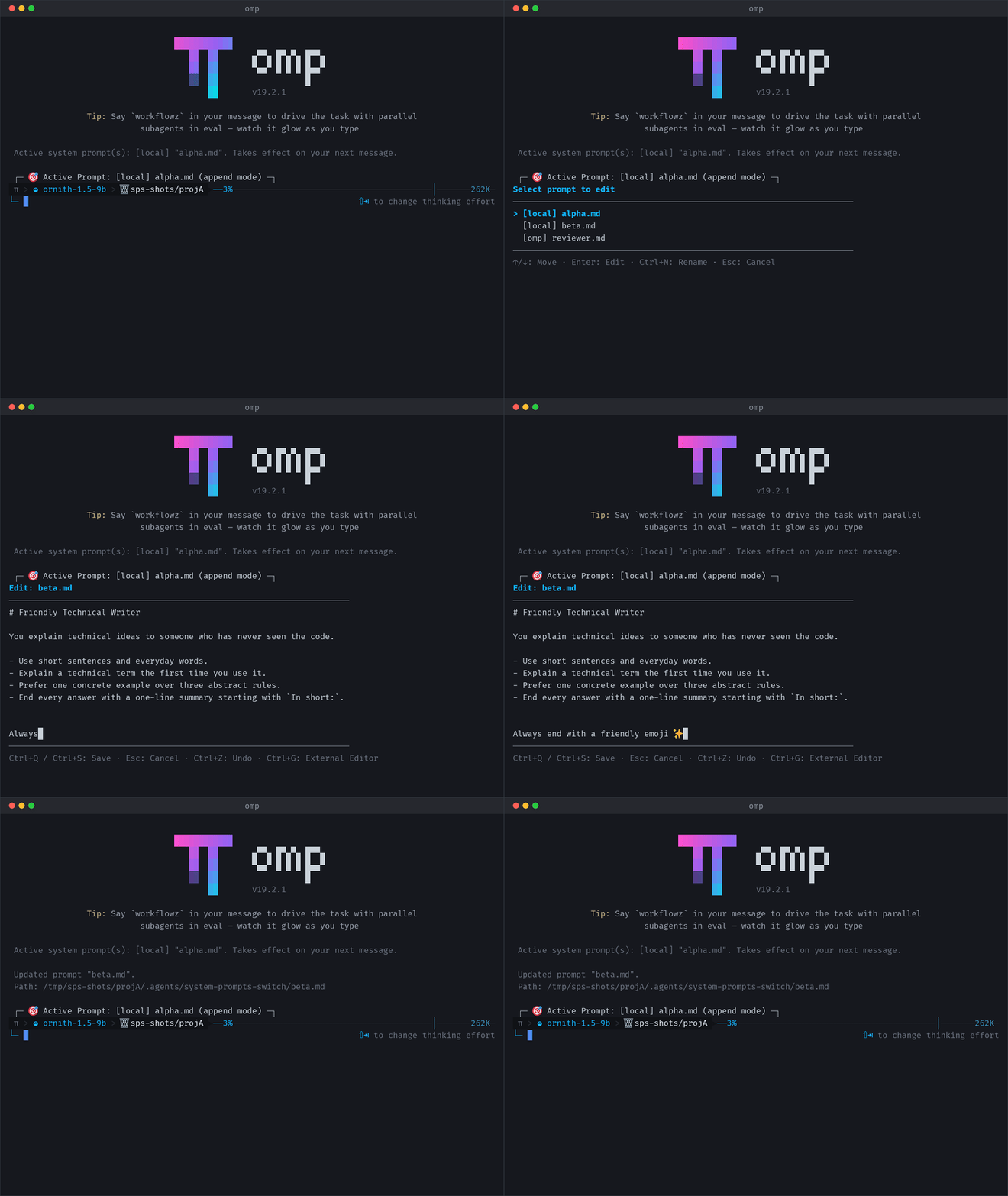
/sps-edit: pick a prompt (Ctrl+N renames it), edit it; saving an emptied prompt asks first:
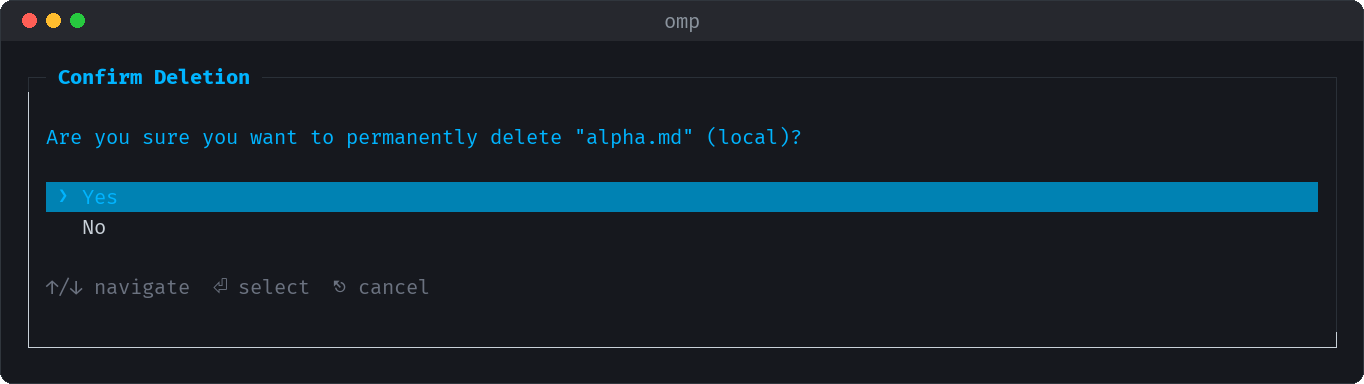
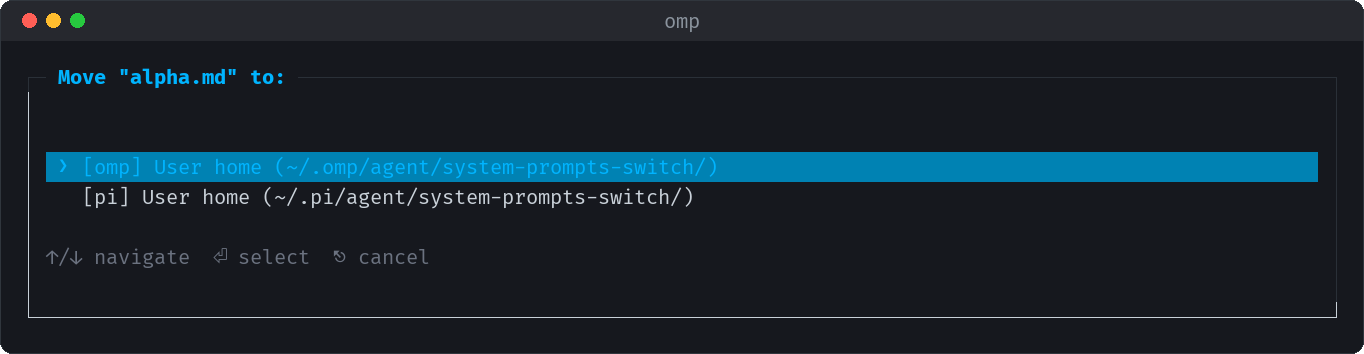
/sps-delete and /sps-move:
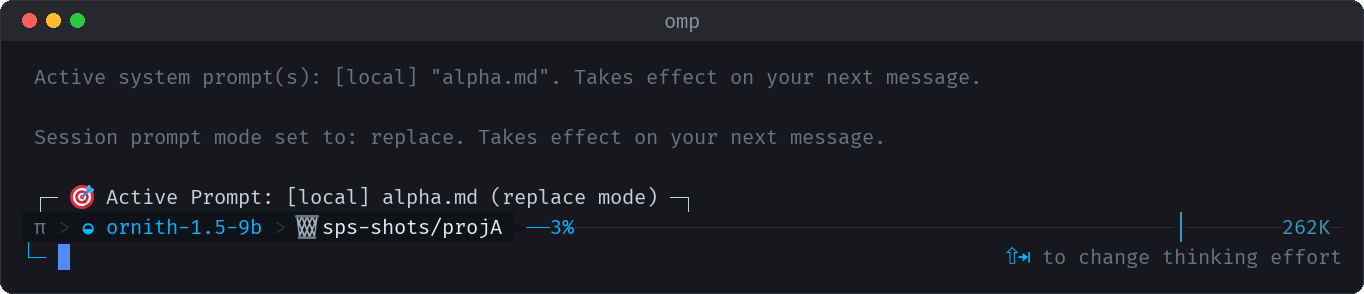
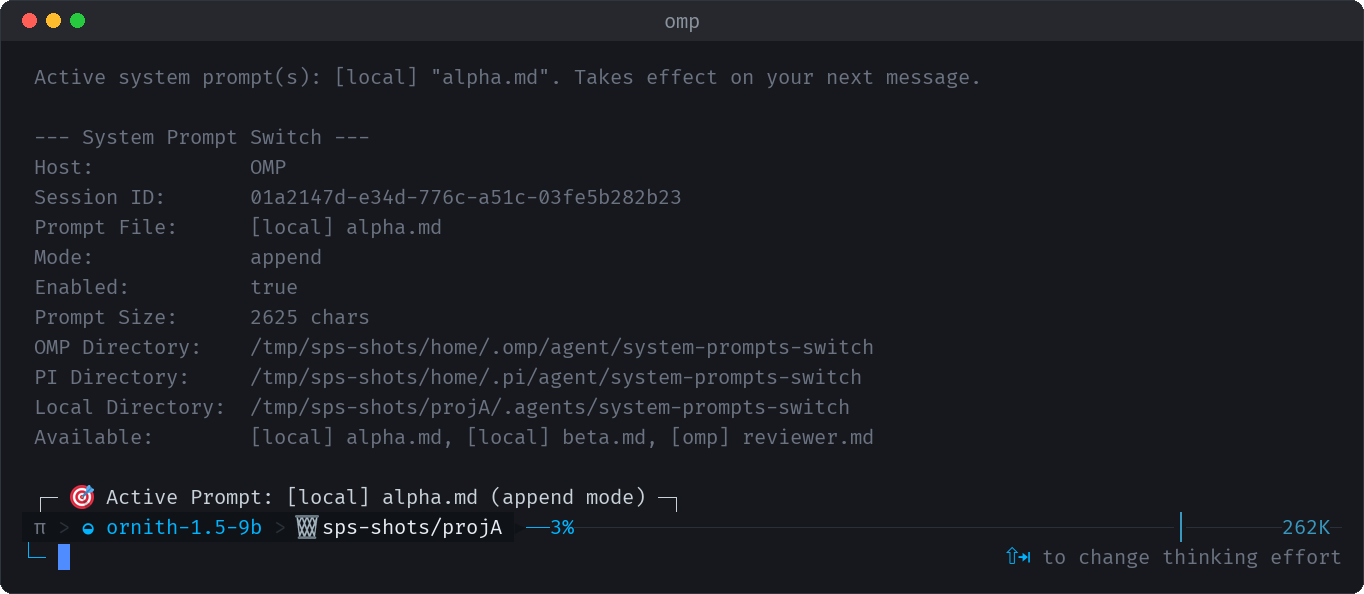
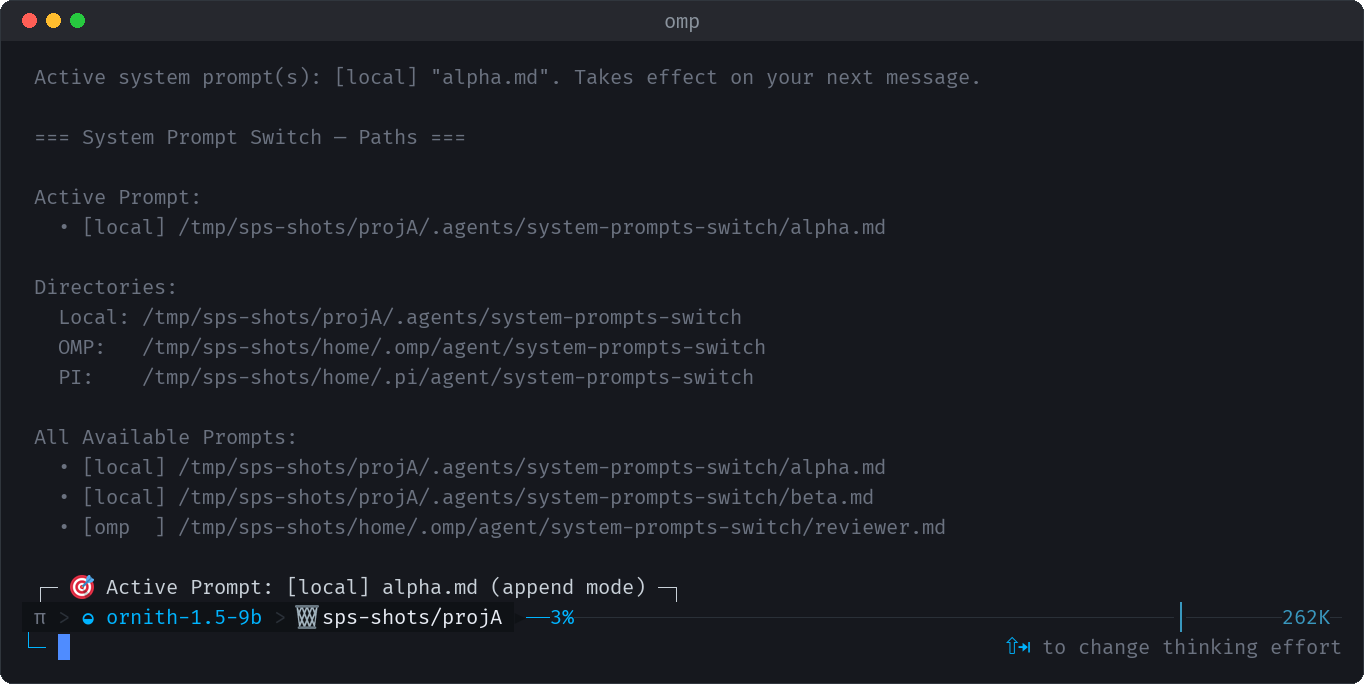
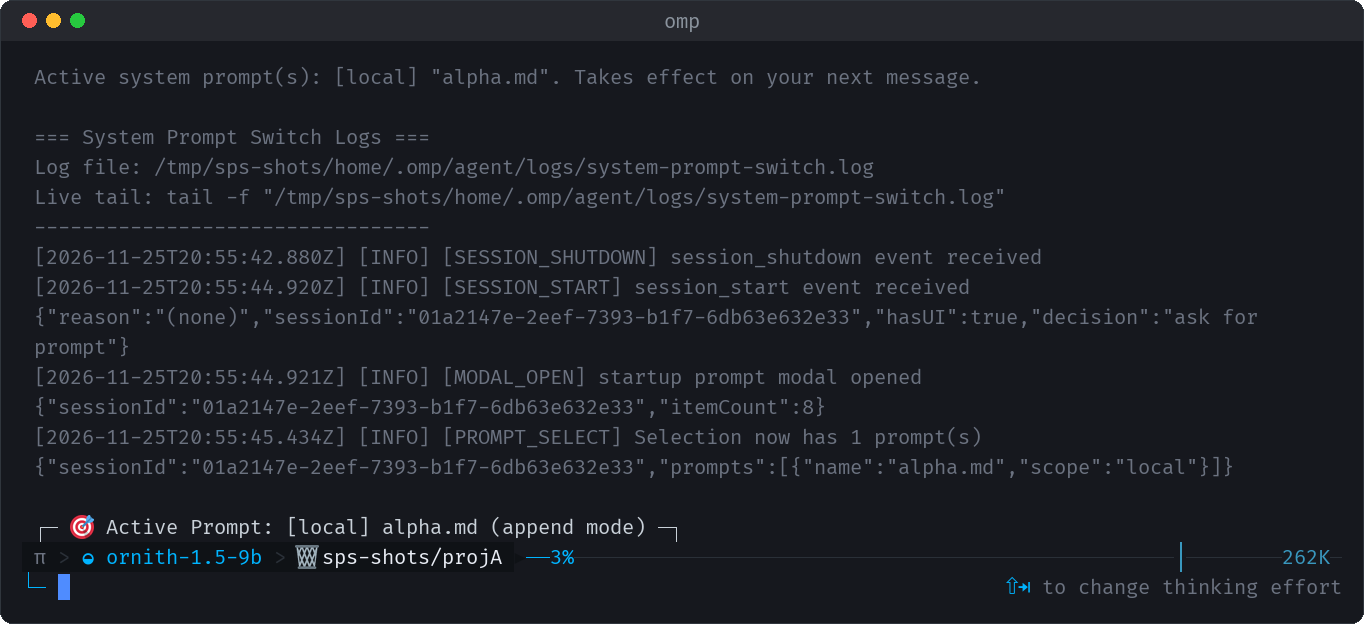
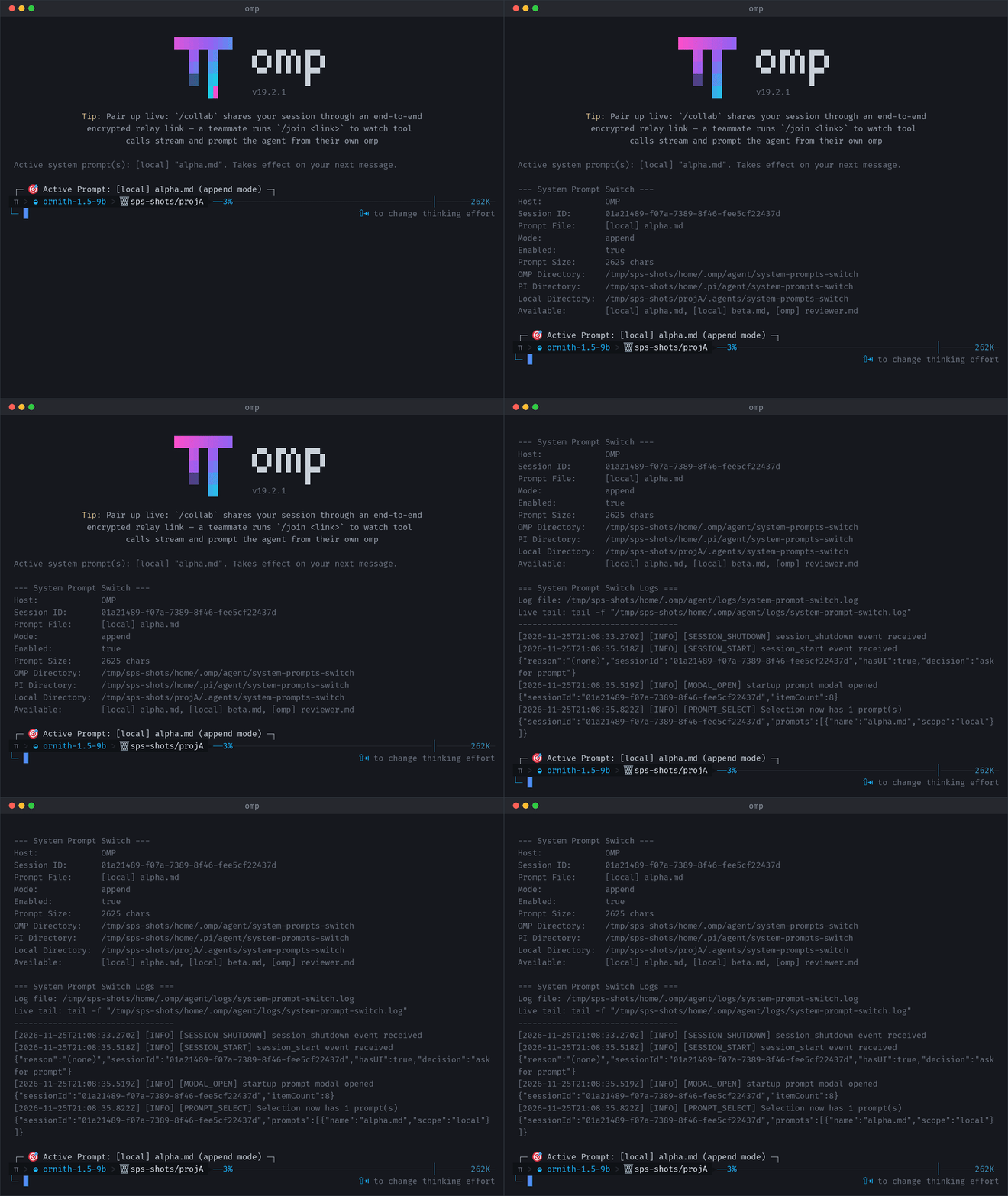
/sps-mode, /sps-info, /sps-path and /sps-logs:
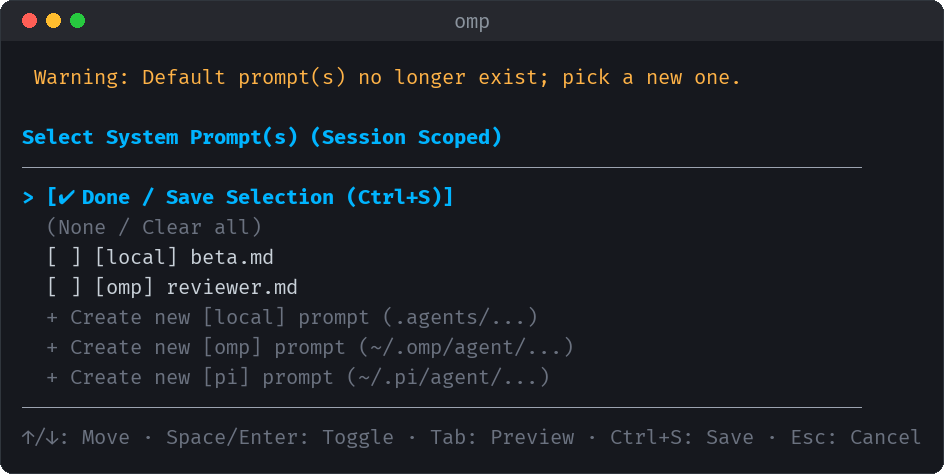
If a project default points at a deleted file, it is dropped with a warning and the modal shows again:
Demo GIFs:
1. Select / Create system prompt when new session
2. Update system prompt (local or global)
3. Inject one or several system prompts for next message
4. Get information or logs
5. Delete a system prompt
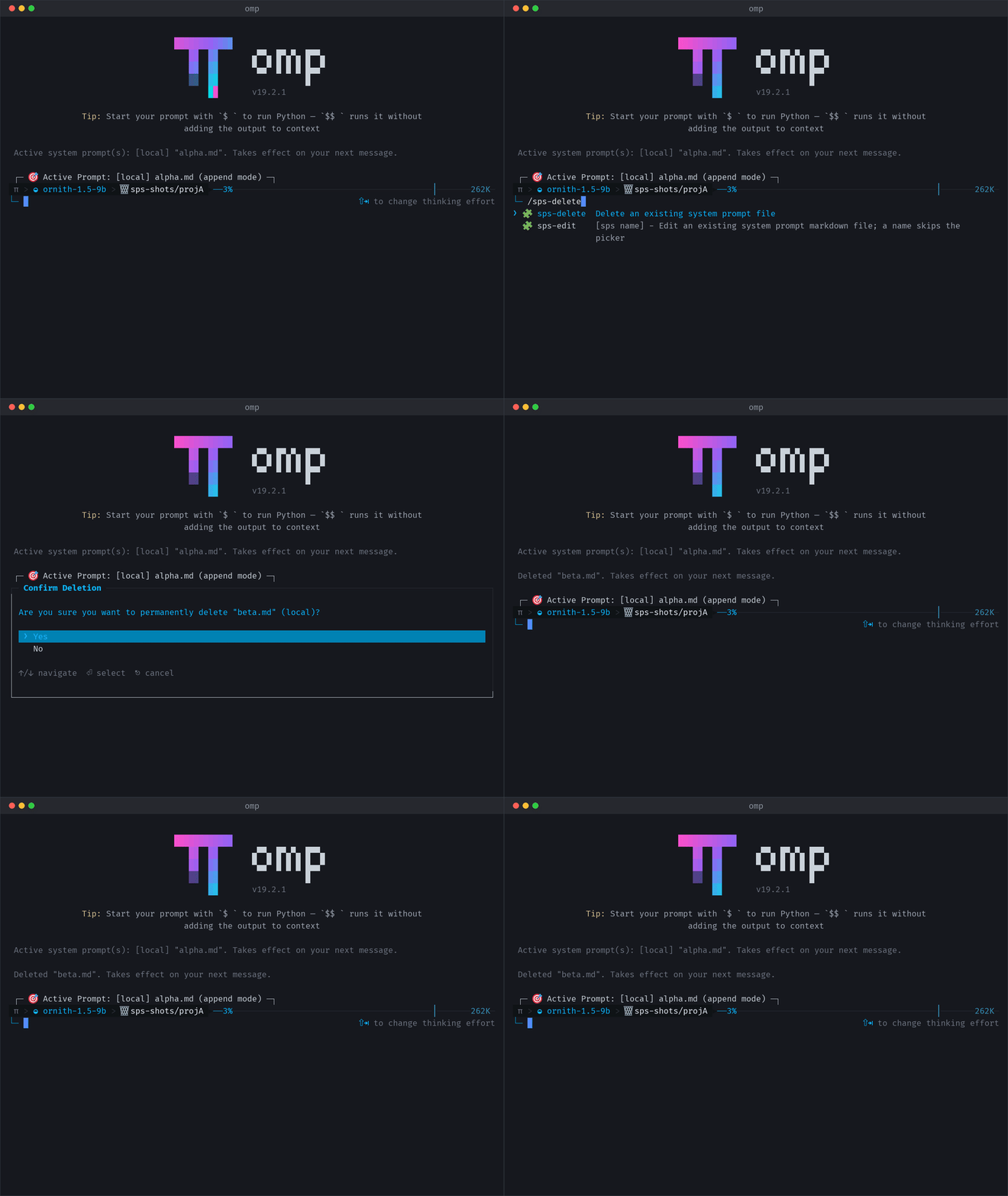
What it does
- Per-session prompts - your active prompt is bound to the session ID, never leaks between concurrent or sequential sessions.
- Two scopes, one mental model -
[local]lives in your repo (.agents/system-prompts-switch/, committable),[global]lives in your home (~/.pior~/.omp/agent/system-prompts-switch/). Same file can exist in both; local wins for the repo session. - Stack multiple prompts -
/sps-select a.md b.md(or the checkbox list) keeps several prompts active for the session and the project default;/sps-injectadds prompts for the next message only.[global] <system-prompt-name>.md + [local] project-rules.mdis a valid active state. - Above-editor banner - the active prompt is rendered directly above your input prompt so you never forget which one is loaded.
- Self-describing extension context - every resolved prompt includes a leading block that tells the LLM what this extension is, where prompt files live, and how to inspect/change them. The block is loaded from
assets/templates/extension-context.mdso you can tweak the wording without touching code. - Per-project default - your last choice in a project (startup modal,
/sps-select, or a prompt just created with/sps-new, one or several prompts, including(None)) becomes that project's default. New sessions there apply it silently, with no startup modal. Pick another with/sps-selectto change it. If a default's file is gone it is dropped, and if none is left it is forgotten and the modal shows again. Dismissing the modal does not set a default. - Startup modal - on terminal launch, a checkbox list: Space/Enter ticks prompts, Ctrl+S saves (nothing ticked =
(None)), Esc skips without setting a default; you can also create a prompt from it. Enabled by default; setpromptOnStartuptofalseto skip it while retaining/sps-selectand other commands:- OMP:
~/.omp/agent/config.ymlsystemPromptSwitch: promptOnStartup: false - Pi:
~/.pi/agent/extensions/system-prompt-switch.json{ "promptOnStartup": false }
- OMP:
- Merge modes -
append(default, safe) keeps base instructions;replaceuses your prompt as the base while preserving tools, skills, and project context. - Live logging to
~/.pi/agent/logs/system-prompt-switch.log/~/.omp/agent/logs/system-prompt-switch.log, with/sps-logs [lines]inside the session.
Commands
| Command | What it does |
|---|---|
/sps-select [none|[sps name 1] [sps name 2] [sps name N]] | Pick the active prompt(s) from a checkbox list (Space/Enter toggles, Ctrl+S saves); with names it selects them directly, no picker. A name may be prefixed with [local|omp|pi]; none clears |
/sps-inject | Stack or toggle multiple prompts for this session |
/sps-new | Create a new .md prompt (choose local vs global) |
/sps-edit [sps name] | Edit a prompt in the built-in editor: pick it from a list (Ctrl+N renames it) or pass its name to skip the picker. A rename updates this session and the project default; other open sessions that used the old name need a new /sps-select |
/sps-path | Print absolute paths for the active prompt and all local/global files |
/sps-delete | Delete a prompt file (resets session if it was active) |
/sps-move | Move a prompt file to another scope (local, global pi, or global omp) |
/sps-mode [append|replace] | Toggle or set the merge mode |
/sps-info | Show host, active prompts, mode, session ID, and directories |
/sps-logs [lines] | Tail the session log |
How prompts live
| Scope | Default location | Override env |
|---|---|---|
| Local (repo) | <cwd>/.agents/system-prompts-switch/ | SPS_LOCAL_PROMPT_DIR |
| Global | ~/.omp/agent/system-prompts-switch/ (OMP) or ~/.pi/agent/system-prompts-switch/ (Pi) | SPS_PROMPT_DIR or SYSTEM_PROMPT_DIR |
| Session state | ~/.<host>/agent/state/system-prompt-switch/sessions.json | SPS_STATE_PATH |
| Project default prompt | defaults.json beside the session state file | follows SPS_STATE_PATH |
Legacy prompts in ~/.pi/agent/system-prompts/ are auto-migrated on first run.
Reading the active prompt from another app
sessions.json is a public contract for clients (for example a chat UI driving omp over ACP): one entry per session ID, fields are only ever added.
{
  "<sessionId>": {
    "activePrompts": [{ "name": "reviewer.md", "scope": "global-omp" }],
    "mode": "append",
    "enabled": true,
    "decided": true
  }
}
scope is local, global-omp or global-pi; mode is append or replace. To change it, send /sps-select <name> or /sps-mode append|replace as a prompt in that session.
Over ACP the startup modal does not block: the client may send the first message before the user picks, so that message runs without the prompt. A client that picks the prompt itself starts the host with SPS_START_PICKER=0: no startup modal, then it sends /sps-select <name> before the first message. Unset (the default, e.g. the terminal) keeps the modal.
Environment variables
All optional. Set them in the shell that launches Pi or OMP.
| Variable | Effect |
|---|---|
SPS_LOCAL_PROMPT_DIR | Local (repo) prompt directory instead of <cwd>/.agents/system-prompts-switch/ |
SPS_PROMPT_DIR / SYSTEM_PROMPT_DIR | Global prompt directory instead of the host default |
SPS_STATE_PATH | Session state file (sessions.json); defaults.json follows it |
SPS_LOG_PATH | Log file path |
SPS_START_PICKER=0 | Skip the startup modal (for clients that pick the prompt themselves) |
SPS_HOST=pi|omp | Force host detection when it is wrong |
The startup modal can also be turned off with the promptOnStartup setting, see What it does.
Editor shortcut note
/sps-new and /sps-edit open the same editor on Pi and OMP: Ctrl+Q or Ctrl+S saves, Esc cancels, Enter adds a line, Ctrl+Z undoes (never past the text the editor opened with) and Ctrl+G opens $VISUAL / $EDITOR. The key hints are drawn under the editor. Saving an emptied prompt asks for confirmation first.
For developers
Architecture, build, test, and contribution guide: see README.dev.md.