Install
Install with PiG
pig install npm:pi-stereo-viewInstall with Pi
pi install npm:pi-stereo-viewPackages run code with your permissions and influence agent behavior. Catalog inclusion is not a security audit. Review the source before installing a third-party package.
Video
Declared by the package manifest. Open the file ↗
Pi manifest JSON
The pi field of package.json.
{
  "image": "https://raw.githubusercontent.com/alexshpunt/pi-stereo-view/main/assets/logo-wordmark.png",
  "video": "https://github.com/alexshpunt/pi-stereo-view/releases/download/v0.1.0/demo.mp4",
  "extensions": [
    "./src/index.ts"
  ]
}
README
Written by the package's publisher, shown as published in version 0.1.29 (README.md). PiG does not review it.
pi-stereo-view
Keep Pi conversation separate from tool output and agent activity.




You come back to a chat and can't remember what you were talking about?
Split tool output from the agent's replies with pi-stereo-view.
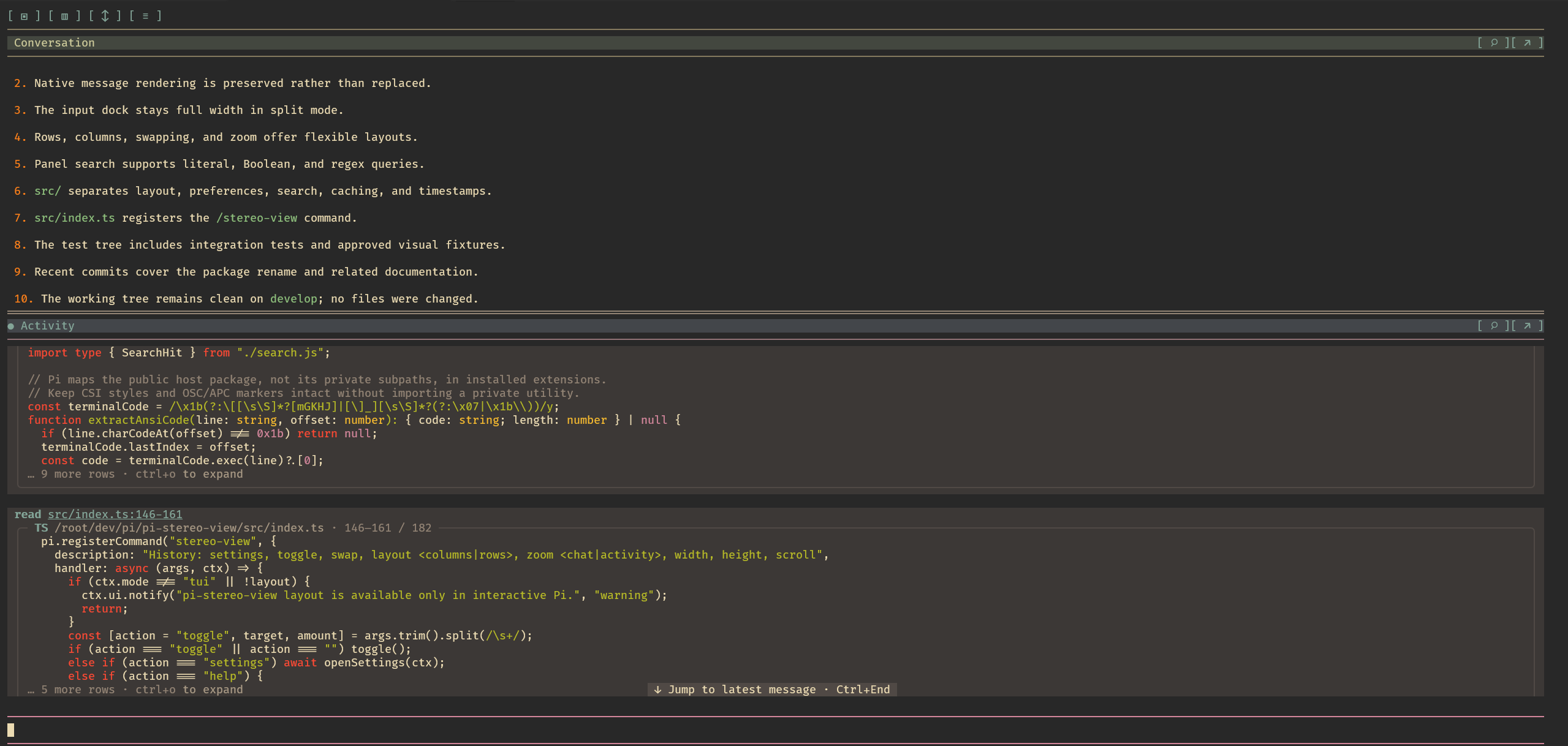
The chat becomes two zones: your conversation with the agent, and the agent's work where it calls tools.
| Zone | What's in it |
|---|---|
| Conversation | Your messages, the LLM's replies, summaries and system information, including welcome, loaded resources, warnings, errors and status notices at any time. |
| Activity | Thinking, tool calls and results, related tool output, and shell execution. |
Unrecognized content stays in Conversation unless its metadata links it to a known tool call.
Late output linked to a tool call appears directly below that call in Activity, even if other work has happened since. Combined history keeps its original order.
Expand a parent tool such as Codemode to browse its nested call tree. To keep the parent's own output panel instead, set Codemode calls to raw output in Settings. Adjacent calls of the same tool form a group with individual call headers. Each independent native result opens under its call. A combined result covering several calls stays whole inside their group. Panels without child execution identities remain available inside the parent's output disclosure. Session restoration uses Pi's saved nested-call metadata and the original saved panels.
Messages and tools keep their familiar appearance. Extension widgets and inline dialogs appear at the bottom of Activity, below its independently scrolling history. Standard select, confirm, input and editor dialogs and non-overlay custom components keep Pi's native input, focus and completion behavior. The message editor, including extension-provided replacements, stays full width whenever Pi displays it. Explicit overlays keep their native placement.
If the Activity surface cannot fit without clipping, the view temporarily returns to combined history and Pi's normal placement. Combined history, zoomed Conversation and unsupported native layouts also leave dialogs and widgets in Pi's dock. Open forms stay live as layouts change and disappear when their producer closes them; they are not added to history.
Pi's own menus, such as the session tree (/tree or double Escape), /fork, /resume, /model, /login and Pi's settings, are wide lists that only you open. While one is open with the panels side by side, the view temporarily returns to combined history so the menu gets the full width, then restores the split when it closes. Pi's follow-up questions, such as Summarize branch? after you pick another point in the tree, keep that placement. The Pi pickers in split setting chooses full screen (default), maximize Activity, which temporarily hides Conversation instead, or inside Activity, which keeps them in the half-width Activity panel like extension dialogs. Rows and a maximized panel already give the menu the full width and keep it there. Extension dialogs, including questions the agent asks, stay under Activity so Conversation remains visible.
Features
- Arrange Conversation and Activity in columns or rows, swap or resize the panels, and zoom either one while keeping the input full width.
- Group consecutive Activity tools and expand individual calls inline while keeping thinking visible.
- Optionally see which work belongs to which request: each request and everything the agent did for it share a color in both panels, pointing at a block highlights all of it, and a block's clock jumps to the same moment in the other panel.
- Copy an individual user message, assistant reply or thinking block with its own copy icon.
- Copy a complete tool call with its arguments, saved result and linked late output, including collapsed and off-screen text.
- Search panel history with literal text, Boolean expressions or regular expressions, then jump between matches.
- Show or hide timestamps and copy icons independently. Layout and display settings survive restart.
See it in action
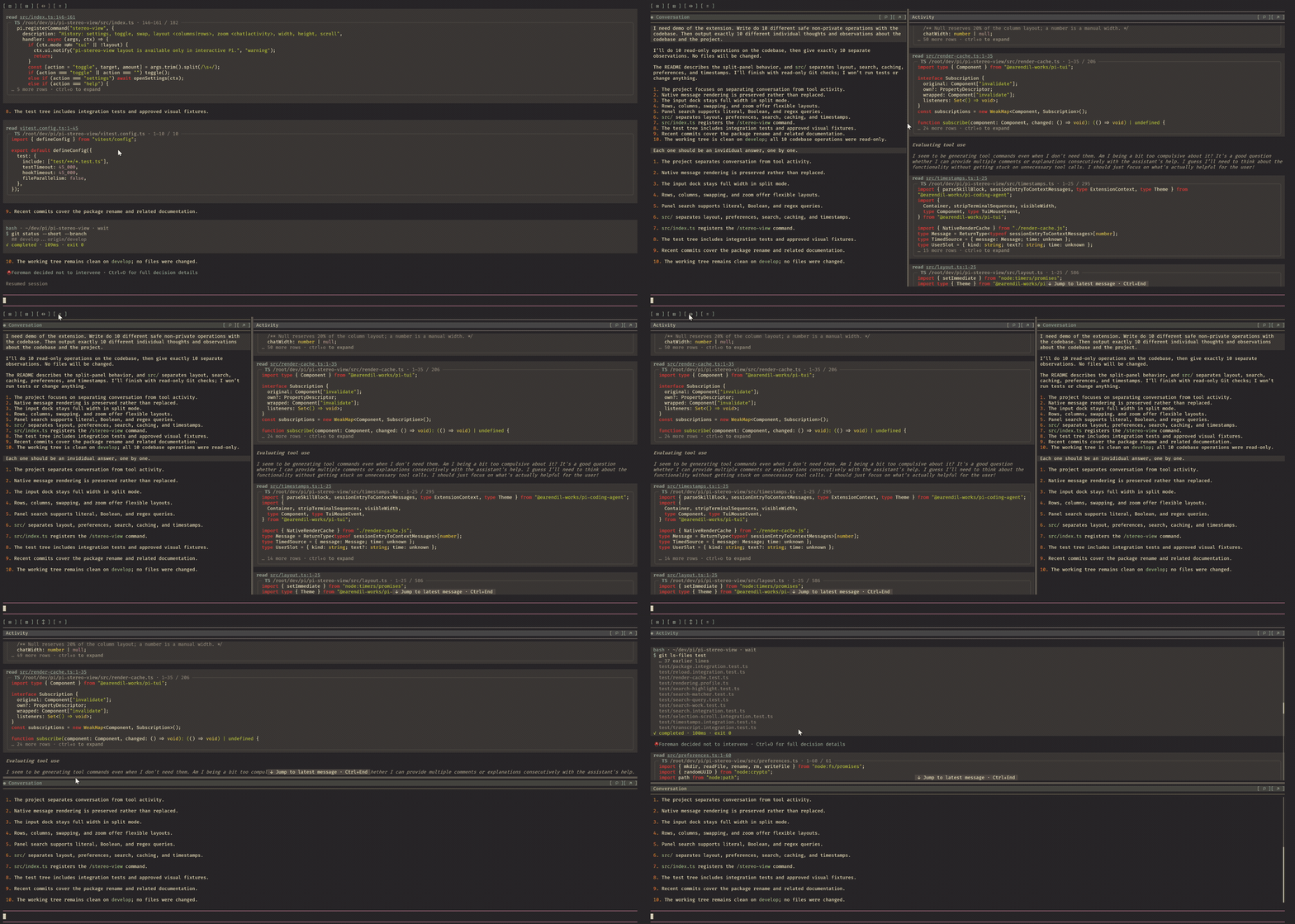
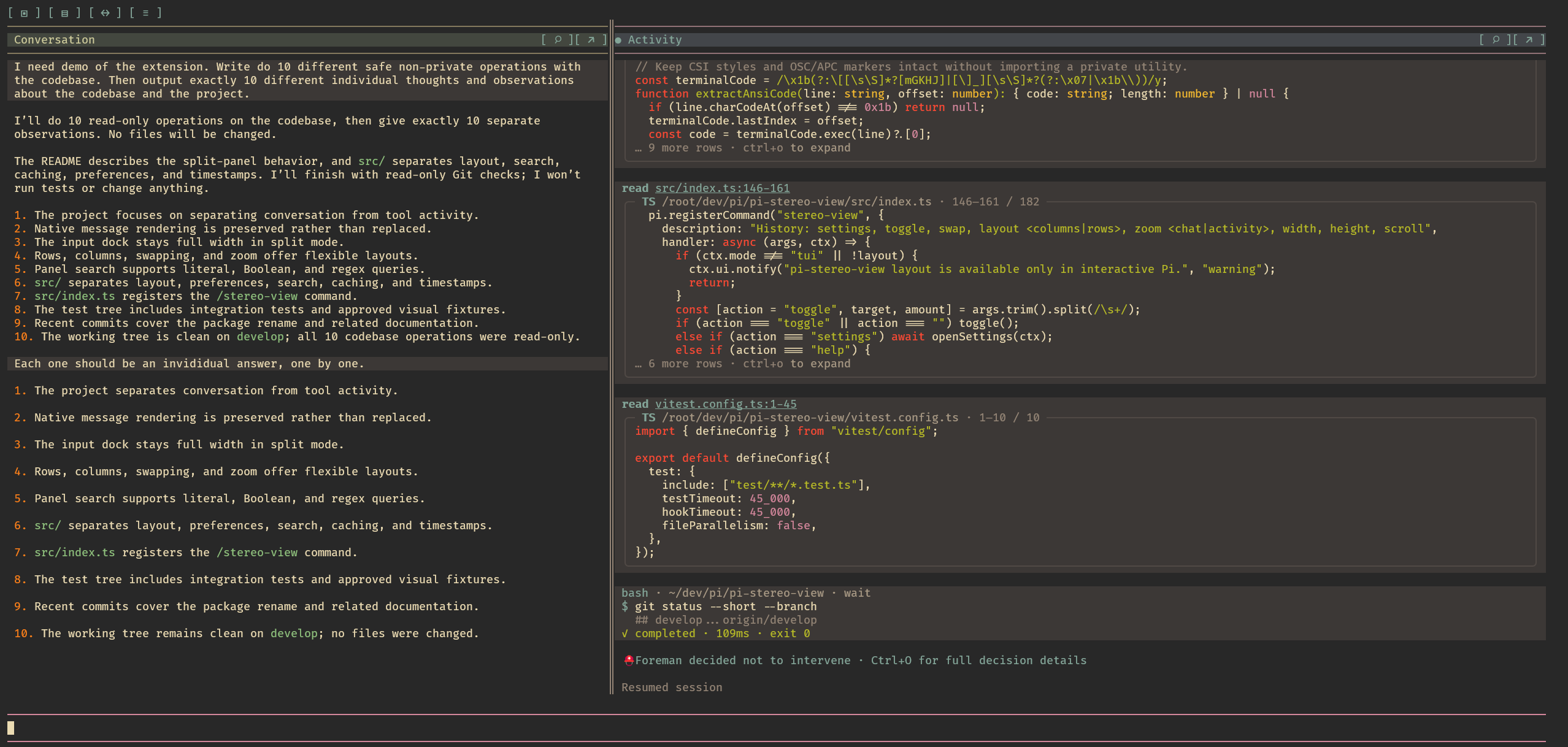
Columns
Conversation beside Activity, with a full-width input below both panels.
Rows
Conversation above Activity. Swap the panels whenever you need a different order.
Install
pi install npm:pi-stereo-view
Split history needs Pi's fullscreen mode. Choose it in /settings, or start Pi with:
pi --tui-mode fullscreen
Use it
Click the toolbar and the buttons in each panel's header. Buttons use text labels by default. To use icons instead, open Stereo View settings with [Settings] or /stereo-view settings, then set Button labels to icons. The choice survives restart. The toolbar uses icons when the text buttons would not fit in one row. Settings are grouped under Blocks, Activity tools, Layout and Turns.
The toolbar chevron hides or restores pane headers. The toolbar and headers are on by default and saved independently. Under Layout, set Show pane headers to auto to hide them below Auto header threshold (rows). The default is 32 rows of total history, excluding the toolbar and input dock, in both Columns and Rows. Press Enter on the threshold to change it. Headers stay hidden if they cannot fit. The chevron, /stereo-view headers, and /stereo-view both select an explicit on or off. Return to settings to re-enable Auto.
The split divider still resizes the panels, and Ctrl+F still searches the active panel without headers. Use /stereo-view settings to reopen settings without the toolbar.
| Icons | Text | Action |
|---|---|---|
[ ▣ ] / [ ◫ ] | [Combine] / [Split] | Turn split history off / on. |
[ ▤ ] / [ ▥ ] | [Rows] / [Columns] | Switch between rows and columns. |
[ ↕ ] / [ ↔ ] | [Swap] | Swap the panels. |
[ ↗ ] / [ ↙ ] | [Maximize] / [Restore] | Zoom a panel / restore the split. |
[ ≡ ] | [Settings] | Open display and Conversation height settings. |
[ ⌃ ] / [ ⌄ ] | [⌃] / [⌄] | Hide / restore pane headers. |
[ ⌕ ] | [Find] | Search this panel. |
[ ⊟ ] / [ ⊞ ] | [Compact tools] / [Full tools] | Show finished tool calls as one line / in full. |
[ ⇄ ] | [Go to] | Open the same moment in the other panel (when Jump to other panel includes the button). |
Resize: drag the double line between the panels — ═ in rows, ║ in columns.
New installs start in Columns: Conversation gets 20% of the width on the left, and Activity gets 80% on the right. Drag the divider or use the size shortcuts to change this.
In Rows, Conversation grows with its messages up to half the available history area, then scrolls. Dragging the divider or setting a height changes that limit. Set Conversation height in rows to grow with messages in settings, or run /stereo-view height auto, to restore automatic sizing.
Panels fit short content and scroll when history fills up. Each panel has its own scrolling, text selection and copy.
Swap the panels whenever you want. Zoom a panel to give it the whole history area; the input stays visible. Restore it to return to your split. Turning split off returns to one combined history; the toolbar stays available to turn it back on.
Compact Activity
Three independent settings in /stereo-view settings control how Activity shows tool calls. Each survives restart; the first value is the default.
| Setting | Values | What it shows |
|---|---|---|
| Finished tool calls | one line, full | One line per call that you click to open its full card and linked output, or the full card. |
| Repeated tool calls | merge, separate | Adjacent calls to the same tool in the same state share one header with a count, such as read ×3, or each stands alone. |
| Codemode calls | tree, raw output | Calls made by a tool such as Codemode appear as a tree under it, or the tool keeps its own output panel. |
One-line and merged calls combine freely. With both, a group opens into one-line rows, and each row opens its card. With merged full calls, a group opens straight into the members' full cards. With one-line separate calls, every call keeps its own row. With full separate calls, Activity shows the original cards; this suits other extensions that draw their own tool cards.
Click [ ⊟ ] or [Compact tools] beside Find and Maximize in the Activity header to turn compact rows on, and [ ⊞ ] or [Full tools] to turn them off. The button changes only Finished tool calls.
Every failed call stays separate, even beside another failure. Left guides mark each level: members sit inside their group, and an open card and its linked output sit inside their call. Collapse a call or its group independently; reopening the group keeps your expanded calls, and so does turning grouping off and on again. Thinking, Conversation content and different tools end a group.
Group and call headers show ▸ when collapsed and ▾ when expanded. Each call row has a one-cell left gutter, a colored status dot, its tool name and a short argument description. A group shows its shared running or successful state. Failed calls expose their own status and argument preview without opening a group. A call whose result holds images shows their count, such as (1 image), before its description; a group shows the total for its calls. Open the call to see the images, if your terminal can display them. Long descriptions are truncated, not the saved calls. Verified local MCP forwarding aliases use their native tool's name; foreign, ambiguous and unknown tools keep their original identity.
Search and /stereo-view copy still include full saved results and linked output. A search match opens its group and call temporarily; clearing the search restores your previous expansion. Conversation and combined history keep their normal display.
Compact rows and groups work in columns, rows and zoomed Activity. Settings saved before grouping was a separate setting keep their look: grouping follows the saved compact choice.
Running tool calls
Running tool calls (full by default) lets you watch the current work while keeping history short. While finished calls show as one line or merged, a new tool call appears as its full card and updates live. When it finishes, it stays full for Fold finished calls after (1, 2, 3, 5, 10 or 30 seconds; default 5), then folds in place: into one line, and into the adjacent identical calls' group (read ×3) when merged. With one line, a running call shows as one line right away. When finished calls show full and separate, every call already shows in full, so this setting changes nothing.
Calls that are still running or waiting to collapse are never grouped. Thinking, answers and other content between calls appear as usual and end a group. Several calls running together collapse separately, each after its own delay. A call you opened yourself stays open. Scroll position is not changed when a call collapses; if you are at the end of Activity, you stay there. A reopened session shows all its calls collapsed. Both settings survive restart.
Tool durations and model usage
Both settings take effect immediately and are off by default.
- Under Activity tools, turn on Tool durations to see the recorded time for each finished call, including individual calls in the Codemode tree and in expanded groups. A parent shows its own time. Groups do not add their members' times, because calls may run in parallel. For a tool that starts a background job, its time ends when the call returns.
- Under Blocks, turn on Model usage to see one summary for each model response. The summary uses Pi's notation:
↑for input,↓for output,Rfor cache reads andWfor cache writes, followed by the recorded cost in USD when available. In Conversation it sits to the right of the clock, or above the message if it doesn't fit or clocks are off. Tools that report model usage show it on their calls. An inclusive tool total already counts usage from its nested calls.
Stereo View leaves missing values blank and keeps the fields Pi saved when you reopen a session. The settings do not change Pi's combined history or original tool cards. Codemode's raw output still shows the details it recorded for its own model calls.
Find your way between requests
A turn is one message you sent, or one message an extension gave the agent, together with everything the agent did and said until the next such message. Consecutive messages with no work in between form one turn.
Turn colors, hover highlighting and Go to are on by default. Set Color each turn to off in Stereo View settings to turn them all off; the settings indented under it choose what each does, and keep their values while it is off.
Every turn gets its own color in both panels, so the work for one request is easy to tell from the next. Turns are marked in four independent ways; use any combination:
| Setting | Values | What it marks |
|---|---|---|
| Tint clocks | on (default), off | The background of each block's clock. |
| Left stripe | block (default), line, off | Every block's left column: a colored cell or a thin colored line. |
| Tint blocks | on, off (default) | The background of every block. |
| Line between turns | on (default), off | A colored line across both panels where each new turn begins. |
Neighbouring turns get different hues. Colors stack in layers over your terminal's background: the turn background, then hover, then stripes, separators and clocks. Each layer adds its strength to the layers under it: Block tint strength (8% by default), Hover strength (10%), Stripe strength (20%, also for lines between turns) and Clock tint strength (10%). With these strengths and hover in the turn's color, the clock of a hovered block with a turn background is 8 + 10 + 10 = 28% of the hue, so a clock always stays darker than the block it sits on. In settings, ← and → step a strength down or up, wrapping around at either end.
Hover color sets the hover layer's color: turn color highlights each turn in its own color, or one #rrggbb color highlights every turn the same way; the default is gray, #808080. ← and → pick from presets; Enter opens a field to type any color. Clocks, stripes and separators keep their turn's own color on top of a one-color hover. Tool cards, your messages and other cells with their own background shift by the same amount as the plain background around them, so they stay as distinct from it as without the layers. The terminal's basic 16 colors stay as they are.
Highlight turn on hover (on by default) highlights the turn under the pointer in both panels while the pointer stays there. It needs a terminal that reports pointer movement. Pi turns that off inside tmux, zellij and screen, so there the setting is shown as unavailable.
Go to opens the same moment of history in the other panel:
- From Activity, it shows the Conversation block just before: for a tool call, the reply that made it.
- From Conversation, it shows the first Activity block after: for your message, the work it started.
- A message with a part in both panels, such as a reply with thinking, opens its own other part.
Click a block's clock, including the clock of a compact tool row or group, or the [ ⇄ ] / [Go to] button beside Copy. The Jump to other panel setting chooses click clock, button, both (default) or off. A zoomed panel returns to the split first. The other panel becomes the active one, so keyboard scrolling continues there.
Search history
Press Ctrl+F to search the last clicked or scrolled panel. The active panel's header is highlighted and, when space permits, marked with a dot; Conversation is active initially. The [ ⌕ ] / [Find] button always searches its own panel.
Type a word or phrase to find it without case sensitivity. Combine terms with AND, OR, NOT and parentheses. Put phrases in quotes to keep them together, or start with regex: for a regular expression.
| Example | Finds |
|---|---|
worker ready | The literal phrase “worker ready”. |
worker AND ready NOT failed | Lines containing both “worker” and “ready”, but not “failed”. |
(worker OR server) AND "ready now" | Lines containing either term and the phrase “ready now”. |
regex:worker_[0-9]+ | Names such as worker_12. |
Press Enter, [ ↓ ] or [Go] for the next match, and Shift+Enter for the previous one. The counter shows your position and the total matches when space permits. Ctrl+F returns to the search field without clearing your query.
Search covers the whole current conversation branch, including off-screen messages, hidden thinking and collapsed tool output. It does not search other branches, sessions, attachments or files. Russian and English queries work.
A match is revealed in its own panel without moving the other one. If matching text cannot be shown inside a tool result, a temporary Search match: fragment shows it. Copying keeps the original text, without highlight colours.
Regex search requires ripgrep (rg) to be installed. Invalid queries and search errors appear in the search field instead of showing incomplete results.
Press Escape, [ × ] or [Exit] to close search and restore your previous scroll position. Your message draft stays unchanged. Close other dialogs before searching. Search is available in split fullscreen history; combined history and regular mode keep Pi's usual keyboard behaviour.
Copy a block
Click [ ⧉ ] or [Copy] below the right corner of a message, thinking, tool or other history block to copy its text. Blocks without a known time have no copy button. Copy buttons work in split and zoomed panels, even with timestamps hidden.
Messages and thinking keep their original text/Markdown, without terminal colours, clocks or copy buttons. Copying a tool includes its name, arguments, saved result and linked late output. A late-output block also has its own button to copy just that block. Collapsed and off-screen text is included.
During streaming, each click copies the content available at that moment. Copy uses only text already available in Pi; it does not fetch omitted output or copy binary attachments. Custom blocks without source text fall back to plain rendered text.
For keyboard access, run /stereo-view copy and choose a numbered block from the active panel. It copies the same text as that block's button.
Set Copy buttons to hidden in Stereo View settings to hide the buttons and their rows. This choice survives restart. Keyboard copying stays available when the buttons are hidden.
Timestamps
Conversation and Activity can show a dim local HH:mm:ss clock above each block on the left, with a small inset. The copy button sits below the block on the right, so neither control takes width away from the text. New tool calls show their start time.
In compact Activity, clocks sit at the start of the same line on the left, before the status and tool name, when space permits. A group shows its first call's original time; expanded member rows show their own. Opening a full card does not repeat its clock.
Older tool calls may show ~HH:mm:ss for an approximate time. Blocks without a known time show neither a clock nor a copy button; their content stays visible.
Use Stereo View settings to hide or show clocks. This setting survives restart. Clocks appear in split and zoomed panels, not in combined history. They are display-only and are not added to the conversation sent to the model.
Commands and shortcuts
The same controls are available without the mouse:
| Action | Command |
|---|---|
| Split off / on | /stereo-view |
| Swap panels | /stereo-view swap |
| Rows / columns | /stereo-view layout rows / /stereo-view layout columns |
| Conversation height / width | /stereo-view height 12 / /stereo-view width 40 |
| Automatic Conversation height | /stereo-view height auto |
| Scroll a panel | /stereo-view scroll chat -10 / /stereo-view scroll activity -10 |
| Zoom / restore Conversation | /stereo-view zoom chat |
| Zoom / restore Activity | /stereo-view zoom activity |
| Copy a block from the active panel | /stereo-view copy |
| Display settings | /stereo-view settings |
| Toggle toolbar / pane headers | /stereo-view toolbar / /stereo-view headers |
| Hide both controls if both are shown; otherwise show both | /stereo-view both |
| Button legend | /stereo-view help |
Ctrl+Alt+T toggles split, Ctrl+Alt+S swaps panels, and Ctrl+Alt+Left/Right resizes Conversation along the current split direction.
Keyboard scrolling (PgUp/PgDn and Pi's other scroll keys) moves the active panel. Its header shows a ● when headers are visible. Clicking or scrolling a panel makes it active. Ctrl+Alt+Up or Ctrl+Alt+Down switches to the other panel; press either again to switch back.
Settings and limits
Your layout, panel order, sizes, compact Activity choice, turn marks, hover, Go to and Pi menu choices, timestamp, copy-button, toolbar and pane-header settings are saved automatically. Each new session opens both panels in that arrangement. Zooming one panel or turning split off is temporary and does not carry over to another session.
- Tested with Pi 1.6.0. Requires Node.js 22.19 or newer.
- Regular mode shows one combined history.
- If the terminal is too small, history temporarily combines without forgetting your split.
- If your Pi version cannot display the split, or the split hits an error, Pi keeps working with its normal history. A panel above the editor names the problem and offers a prefilled GitHub issue (Open issue) or the same report as text (Copy report). Nothing is sent until you submit the issue yourself.
- Also tested with Pi-Bolt 1.1.7.