
Install
Install with PiG
pig install npm:pi-minimalistInstall with Pi
pi install npm:pi-minimalistPackages run code with your permissions and influence agent behavior. Catalog inclusion is not a security audit. Review the source before installing a third-party package.
Pi manifest JSON
The pi field of package.json.
{
  "image": "https://raw.githubusercontent.com/EviHex/pi-minimalist/main/docs/click.png",
  "extensions": [
    "./index.ts"
  ]
}
README
Written by the package's publisher, shown as published in version 1.0.0 (README.md). PiG does not review it.
pi-minimalist
Less scrolling. More room for the answer.
A quieter transcript for Pi: turn bulky tool calls into one-line summaries, and open the full output whenever you need it.
See the difference
Before: one tool call takes up most of the screen.
After: the same call, one line.
Click a folded line to open it into separate rows. Click one row to see only its output. Click the ▾ Expanded · click to fold line above an opened run to fold it back.
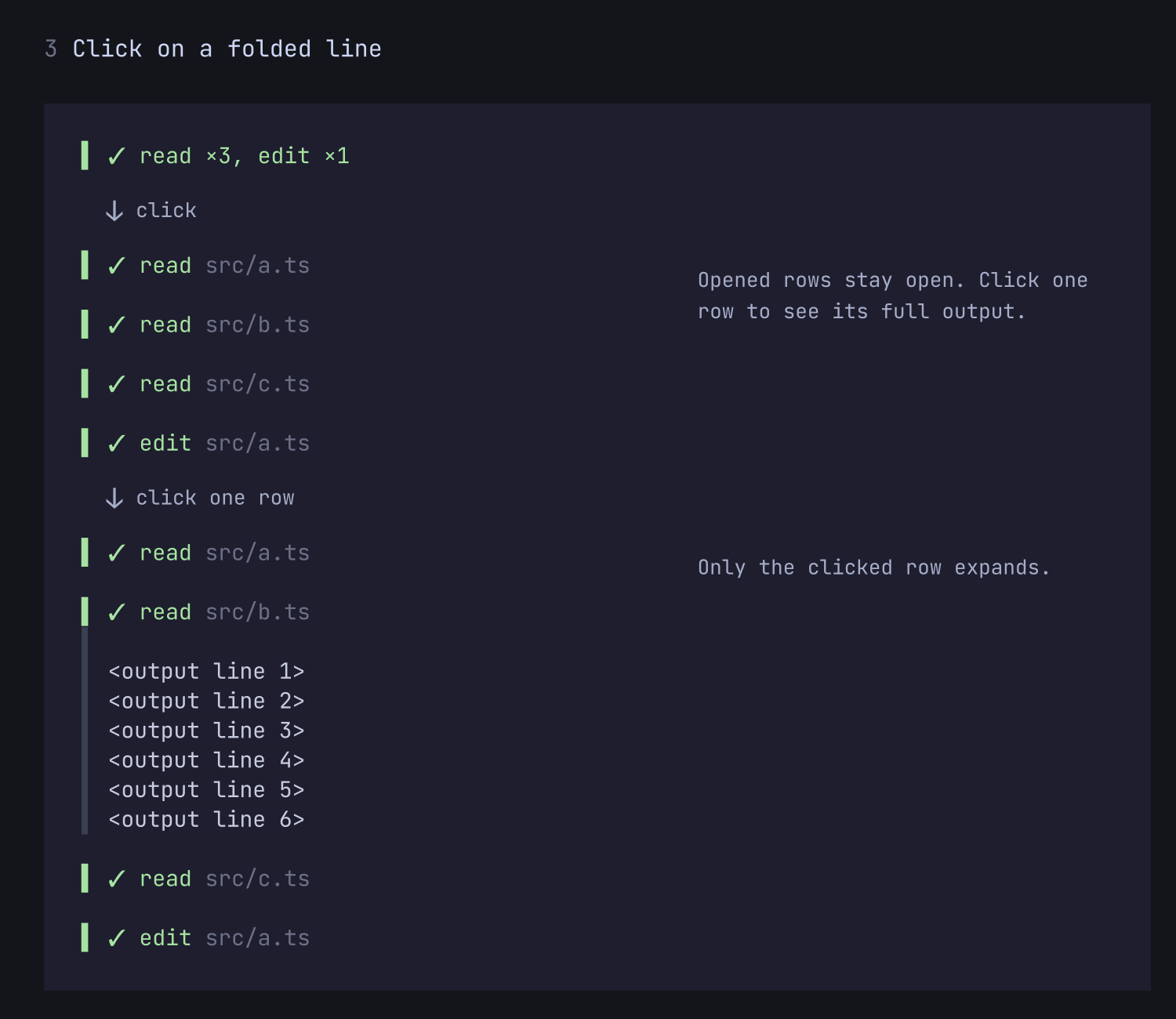
Press Ctrl+O to expand tool output—including diffs and syntax highlighting. Expanded rows also wrap long commands instead of cutting them off. Nothing is removed from the session or hidden from the model; only the display changes.
Install
pi install npm:pi-minimalist
Restart Pi, and tool calls appear as compact rows. No configuration needed.
Choose how quiet you want it
Run /minimalist to change settings live. The settings come in three titled sections. Tree lines show which setting depends on which, and a sub-setting shows only while the setting above it is on:
- Appearance: the symbol set (Unicode or ASCII), the coloured bar left of each row, and the running time on tool calls.
- One-line rows: Shrink output blocks to one line draws tool calls and thinking as one-line rows. Under it, choose which tools keep their own card (Excluded tools: type to search, press Enter on a tool to flip it), how a running tool call shows (merged with others, on its own row, or expanded like Ctrl+O), and, under Shrink thinking output, whether thinking is expanded while it is generated. Both can keep that view for a few seconds after they end (3s by default).
- Merging rows: Merge consecutive rows into one folds them into one summary, such as
read ×2, edit ×1. Under it, Show only the final reply keeps the latest reply in focus and folds everything before it into elapsed work time or tool counts. Apply only to earlier turns keeps the current turn fully visible until your next prompt.
When you turn a setting off, the choices under it are kept and come back when you turn it on again.
A fresh install starts on the full preset (see below): compact tool rows, grouped calls and compact thinking. Show only the final reply is opt-in. Choose lite if you prefer to see each call separately.
Presets
The Preset row at the top of /minimalist sets five options at once: Shrink output blocks to one line, Shrink tool call output, Shrink thinking output, Merge consecutive rows into one and Show only the final reply.
| Preset | What you get |
|---|---|
off | Pi's native tool cards. |
lite | One-line tool rows, each call on its own line. |
full | lite plus combined consecutive calls and compact thinking rows. |
max | full plus only the final reply (Worked for …). |
custom | Your own values for those five options. |
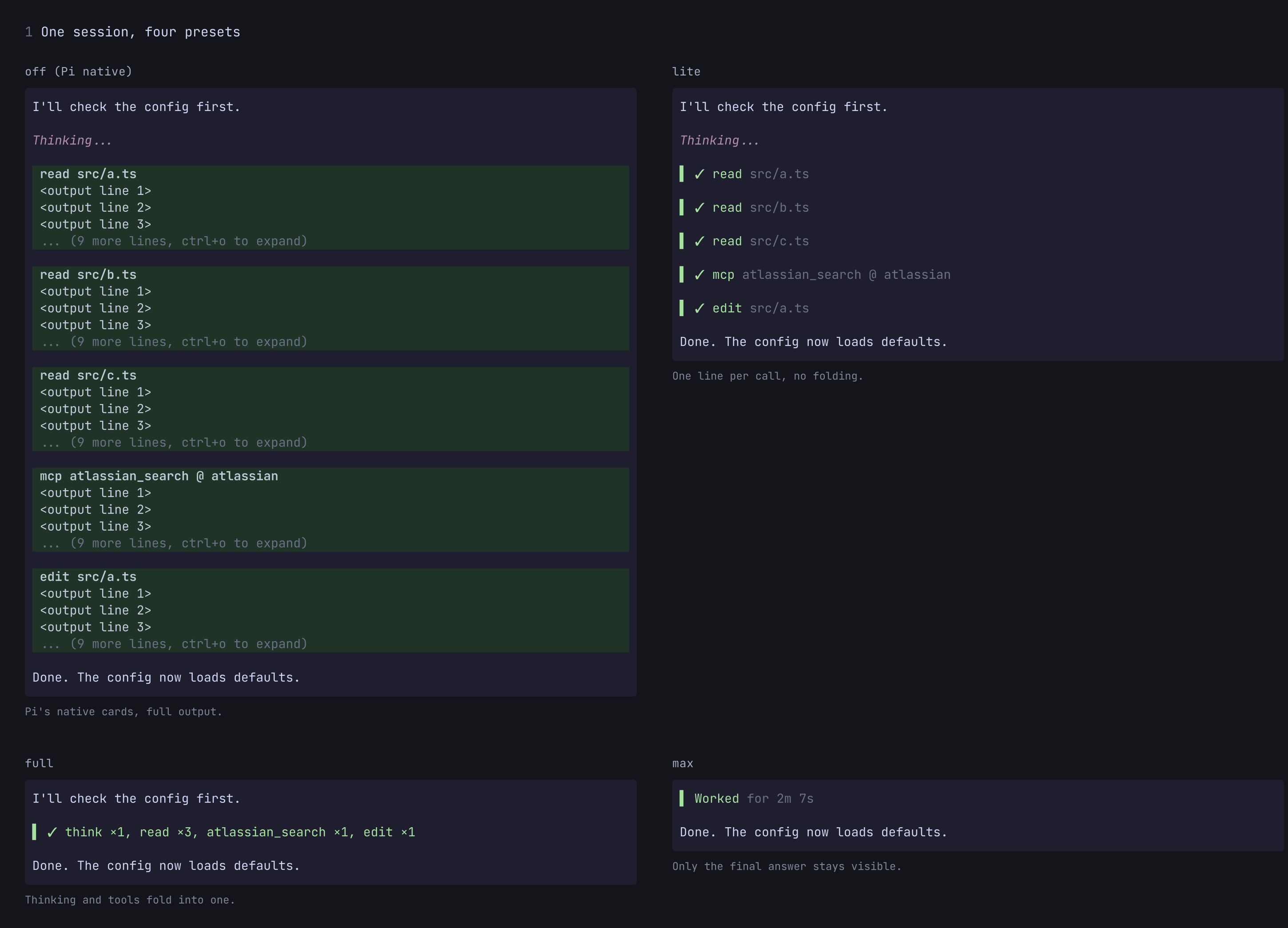
A preset never overwrites your settings. While off, lite, full or max is selected, only those five rows are greyed out and show the preset's values; pressing Enter on one does nothing. Every other option (the appearance settings, Expand ongoing tool call and so on) stays yours and stays editable, as long as the setting above it is on (a preset that turns a row off also hides the settings under it). Your own values are kept and come back when you choose custom. The first time you choose custom, it starts from lite.
Upgrading: if your settings already contain a minimalist block, you stay on custom and keep your values. One rule is new: a setting under one that is off is ignored, for example Show only the final reply while Merge consecutive rows into one is off. Only a user with no minimalist settings at all starts on full, which makes thinking rows compact. To pick another look, change Preset.
Everyday controls
| Control | Action |
|---|---|
/minimalist | Open settings (/minimalist config also works) |
/minimalist status | Show current settings |
| Ctrl+O | Expand or collapse tool output |
| Ctrl+T | Expand or collapse thinking |
Settings apply to existing conversation history and are saved globally. If a symbol looks wrong in your terminal, choose Symbol set → ASCII. No Nerd Font required.
Go back to Pi's usual view
Turn off Shrink output blocks to one line to restore native tool cards and thinking, or Shrink tool call output for tool cards only. Or choose the off preset.
To disable the extension completely, run pi config, disable pi-minimalist, and restart Pi
Compatibility
Tested with Pi 1.0.0. Pi updates can affect rendering compatibility; report a problem with your Pi version, terminal, and a screenshot.