
Install
Install with PiG
pig install npm:pi-everforestInstall with Pi
pi install npm:pi-everforestPackages run code with your permissions and influence agent behavior. Catalog inclusion is not a security audit. Review the source before installing a third-party package.
Pi manifest JSON
The pi field of package.json.
{
  "themes": [
    "./themes"
  ]
}
README
Written by the package's publisher, shown as published in version 0.1.8 (README.md). PiG does not review it.
Pi Everforest


Six warm, green-based Everforest color schemes packaged as installable themes for the Pi coding agent.
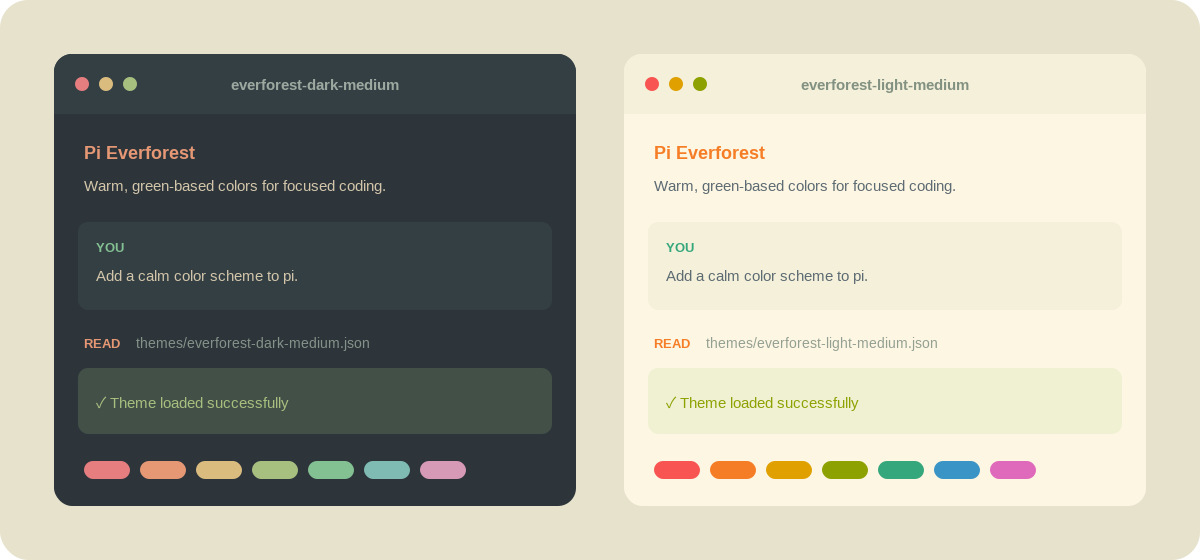
The preview illustrates the package palettes. Exact colors depend on your terminal and display settings.
Features
- Dark and light variants with hard, medium, and soft contrast levels
- Colors for Pi's UI, Markdown, diffs, syntax highlighting, thinking levels, and bash mode
- Matching colors for Pi HTML exports
- Native Pi package discovery through
pi.themes - No runtime dependencies
Install
Install the package from npm:
pi install npm:pi-everforest
Or install it directly from GitHub:
pi install git:github.com/angribot/pi-everforest
To install the package only for the current project, add -l:
pi install -l npm:pi-everforest
Themes
| Theme | Variant | Contrast |
|---|---|---|
everforest-dark-hard | Dark | Hard |
everforest-dark-medium | Dark | Medium |
everforest-dark-soft | Dark | Soft |
everforest-light-hard | Light | Hard |
everforest-light-medium | Light | Medium |
everforest-light-soft | Light | Soft |
medium is Everforest's default contrast level and a good place to start.
Use
Select interactively
Open /settings in Pi and select one of the six theme names above.
Configure a theme
Set the theme key in ~/.pi/agent/settings.json:
{
  "theme": "everforest-dark-medium"
}
Follow terminal appearance
Pair a light theme with a dark theme to follow your terminal's appearance:
{
  "theme": "everforest-light-medium/everforest-dark-medium"
}
The light theme goes before the slash and the dark theme after it. The same pattern works with the hard and soft pairs.
Use for one session
Start Pi with a theme without changing the saved setting:
pi --use-theme everforest-dark-medium
Or use the automatic light/dark pair:
pi --use-theme everforest-light-medium/everforest-dark-medium
Palette design
Everforest describes its palette as green-based, warm-toned, and designed around soft contrast. This package maps its two variants and three contrast levels onto Pi's theme tokens:
- core UI and message surfaces
- success, warning, and error states
- Markdown and code syntax
- tool output and diffs
- thinking-level and bash-mode borders
- HTML export surfaces
This is an independent Pi theme package based on the upstream Everforest palette; it is not an official Everforest project.
Terminal notes
Pi uses 24-bit RGB colors. Most modern terminals support them, while older 256-color terminals receive an approximation.
You can check for true-color support with:
echo "$COLORTERM"
The result is commonly truecolor or 24bit. In VS Code, set terminal.integrated.minimumContrastRatio to 1 if its automatic contrast adjustment changes the palette.
Development
Load a theme directly from a checkout:
pi \
  --theme ./themes/everforest-dark-medium.json \
  --use-theme everforest-dark-medium
Validate all theme files as JSON:
for theme in themes/*.json; do
  python3 -m json.tool "$theme" >/dev/null || exit 1
done
Theme files include Pi's JSON schema URL for editor completion and validation.
Credits
- Palette: sainnhe/everforest
- Pi theme documentation: Themes
- Pi package documentation: Packages
License
MIT. Everforest is also distributed under the MIT License by its upstream authors.