
Install
Install with PiG
pig install npm:pi-atelierInstall with Pi
pi install npm:pi-atelierPackages run code with your permissions and influence agent behavior. Catalog inclusion is not a security audit. Review the source before installing a third-party package.
Pi manifest JSON
The pi field of package.json.
{
  "image": "https://raw.githubusercontent.com/michaelmjhhhh/pi-atelier/main/assets/preview.png",
  "extensions": [
    "./extensions/index.ts"
  ]
}
README
Written by the package's publisher, shown as published in version 0.22.0 (README.md). PiG does not review it.
Pi Atelier
A responsive status rail and live activity sidebar for Pi.
Keep model, context, Git status, usage, and tool activity in view while you work.




Quick start · Features · Usage · Configuration · Troubleshooting · Privacy
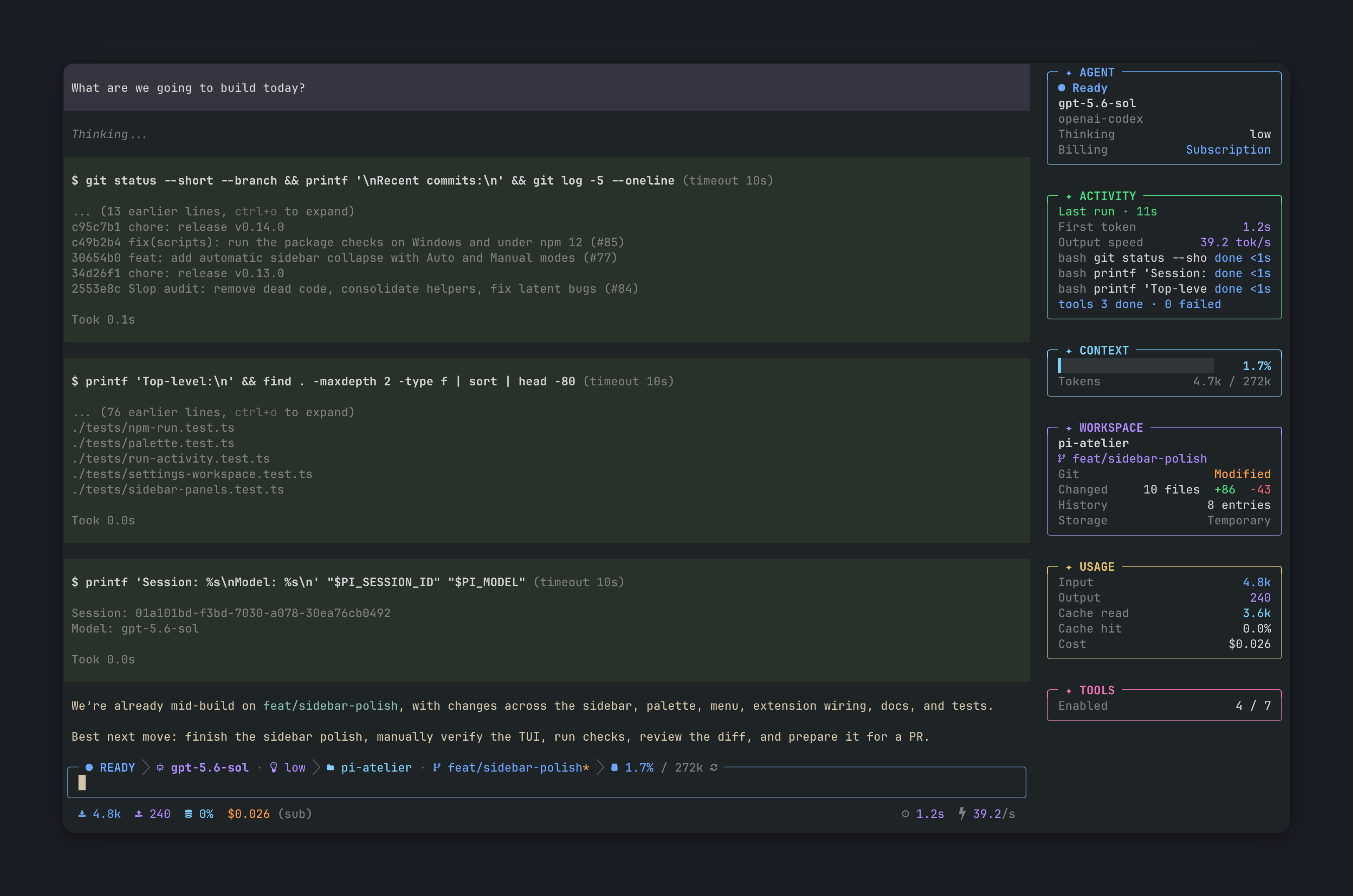
Quick start
pi install npm:pi-atelier
Start Pi and open the control center with /atelier or F6 (Fn+F6 on keyboards with media keys).
[!TIP] Atelier starts in Plain text mode, which works with any monospace font. For icons, select a Nerd Font in your terminal and choose Settings → General → Font → Nerd Font. See Terminal font.
[!NOTE] Atelier uses the core packages of the running Pi host. Its npm peers are optional so installing it never pulls in a second copy of Pi; update Pi itself separately. Pi packages run with your system permissions, so review third-party source before installing.
Requirements
| (blank) | (blank) |
|---|---|
| Pi | 0.84.0 or newer |
| Node.js | 22.19.0 or newer |
| Mode | Interactive TUI |
| Font | Any monospace font (Plain text mode) or a Nerd Font (icons) |
Terminal font
Plain text mode is the default. It works with any monospace font and keeps colors, metrics, and the responsive layout. Nerd Font mode adds icons to the footer and the Sidebar (one per panel title, plus tool, todo, and alert marks) but needs a terminal font that covers them, such as one from nerdfonts.com or a Symbols Nerd Font Mono fallback; without one, the icons render as boxes. Switch in Settings → General → Font or set "nerdFont": true.
Features
| (blank) | (blank) |
|---|---|
| Session visibility | Model, thinking level, context, token usage, and cost in a compact status rail, with optional sidebar panels for the same details. |
| Live activity | Agent and tool activity, TODOs, response timing, and completion notifications on macOS and Windows. |
| Session panel | An opt-in Session panel with the session's goal and where it stopped, written by a model after each run, so a session you switch back to says what it was for. |
| Workspace context | The files you have changed, with lines added and removed per file, from read-only Git status. |
| Subagent costs | Colored per-child cost curves from pi-subagents accounting events, with matching legends and real observation markers. /atelier usage opens a larger framed graph with keyboard focus and per-reply costs. Kitty-compatible terminals get native graphics; others get text strokes. |
| Prefill progress | While a local model is still reading a long prompt, a temporary sidebar panel shows how far through the prompt it is, how fast it is reading, and how long until the first token. |
| Personalization | Display presets, configurable segments and panels, optional Nerd Font icons, and model and tool controls. |
| Extensible sidebar | Other extensions can add their own panels. See Sidebar panels from other extensions. |
No telemetry. No network requests of its own, except the Session panel's recaps, which go through Pi's configured providers. See Privacy.
Usage
Open /atelier or press F6 to change display settings, control the sidebar, select models and tools, or view subagent usage.
/atelier settings [page]      settings; page is general, rail, sidebar, or recap
/atelier display              settings, on the Status rail page
/atelier goal <text>          set the session goal; no text clears it
/atelier goal auto            write the goal again after the next run
/atelier usage                subagent cost graph
/atelier sidebar              toggle sidebar visibility
/atelier sidebar auto|manual  choose sidebar mode
/atelier sidebar on|off       show or hide without changing mode
/atelier sidebar tools        toggle tool names
/atelier enable|disable       set extension state
Sidebar
| Mode | Behavior |
|---|---|
| Manual (default) | Resize with Ctrl+Shift+R (or your resizeShortcut), then the arrow keys or by dragging the divider. Enter or mouse release confirms; Escape cancels. Hides below 92 columns and returns at 92. |
| Auto | Collapses when space is tight and reopens when there is room. At the default width it collapses below 124 columns and reopens at 132. Manual resizing is disabled. |
- Showing or hiding is independent of the mode. A manually hidden sidebar stays hidden when the terminal grows.
- The preferred width survives terminal resizes and mode changes.
- A confirmed resize is saved as
sidebarWidthand becomes the starting width for new sessions. Escape keeps the saved width. - Mode and visibility are session-scoped. The startup visibility preference is set in Settings → Sidebar → Show at startup.
- The sidebar shows what the footer cannot: whether the agent is working and which tools are running or just finished, your TODOs, the context meter, and the files you changed with lines added and removed. Model, usage, and tool counts are already in the footer, so the Agent, Usage, and Tools panels start hidden; turn them on in Settings → Sidebar. Activity also lists the first-token time and output speed of the latest response, which the footer shows only when its
performancesegment is on. A layout you saved earlier keeps its own choices. - Every panel has the same neutral grey frame; its title and ✦ (in Nerd Font mode, the panel's icon) keep a color of their own. A frame lights up only when its panel needs attention: Activity while the agent works (red on an error), Context past your warning and danger thresholds, Changed files on a merge conflict. Inside the panels, color marks state only. When a run finishes, the Activity frame glows green for three seconds, then returns to grey.
- Settings → Sidebar → Style switches between Framed (the default) and Minimal: no frames, just quiet headings that take the state color instead. The setting is saved as the user-only
sidebarStyle("framed"or"minimal"). - The TODO panel supports Pi
todoresults and the optional@juicesharp/rpiv-todoextension. Atelier does not changetodoresults, so the agent keeps task ids andlistoutput.
Session panel
The Session panel answers "what was this for, and where did it stop?" when you switch back to
a session. It is off by default; turn it on in Settings → Sidebar. It sits at the top of the
Sidebar, with the time since the last run on its frame, or updating… while a recap is written.
╭─ ✦ Session ──────────────────── 6m ago ╮
│ Python tasks CLI with tasks.json       │  goal: bright, bold
│ › todo.py verified; awaiting commit    │  status: secondary grey
│   decision                             │
│                                        │
│ deepseek-flash                 $0.0002 │  recap model and cost: dim
╰────────────────────────────────────────╯
The goal is the panel's headline (up to two lines); the status follows a › in the panel's color
(up to three lines), or the TODO's own mark while a TODO is in progress. On a narrow Sidebar the
model name gives way to recap so the cost stays readable; on a short terminal the recap row and the
blank line above it go first, then the status.
While the panel is shown, a model writes its two lines after each run that ends with a reply:
- Goal is written once: a 3-8 word title of the subject and outcome, following the rules T3
Code uses for thread titles. If the subject is still unknown after a run (a greeting, "fix
this", a pasted path), the goal waits for the next run.
/atelier goal <text>sets your own;/atelier goalalone clears it;/atelier goal autohas the goal written again after the next run, keeping the old one if it is still accurate. - Status is rewritten after every run: where the work stands or the next step.
- A dim row names the model (without its provider or date stamp) and the cost of the recap behind
the lines shown, marked
(sub)like the footer when a subscription pays for it. Pi's own usage totals do not include recaps.
| Row | Source, first match wins |
|---|---|
| Goal | /atelier goal <text>; the generated goal; the session name made readable (issue-42-43 → issue 42 43; generated names such as subagent-…-<uuid> are hidden). Otherwise a hint. |
| Status | The TODO in progress; the latest recap, until a newer reply arrives; the first sentence of the last reply that says something (headings, code, and replies like "Done." are skipped). |
- The goal and recaps are stored in the session as custom entries, so they survive
/resumeand follow/treebranches. They are never sent to the model. - The panel refreshes when a run ends and when a session starts, resumes, or changes branch; never mid-run, except that the TODO in progress shows as soon as it changes.
- A recap runs in the background after the run settles and is cancelled if you start a new run. A missing model, missing authentication, a failed reply, or a reply that calls a tool or misses the format warns once per session and leaves the panel on its other sources.
Which model writes it (Settings → Session recap → Recap model, sessionRecapModel, user-only):
- Session model (default,
""): the conversation is replayed as the agent sends it, plus one recap request, right after the run while the provider's prompt cache is warm. The prefix is read from the cache, so a recap of a 50k-token session costs about $0.007 on Claude Sonnet 5.5 or $0.012 on GPT-5.6 terra, plus any thinking tokens: the recap keeps the session's thinking level, because changing it would miss the cache. The transcript goes nowhere it has not already gone. Needs Pi 1.6 or newer. Codex sessions, Pi'sblockImagessetting, and older Pi versions use an excerpt instead, since a replay there would not match what the agent sent. If a replay misses the cache, for example because another extension changes what the agent sends, Atelier warns once with the cost. - Another model (
"provider/model"): sends an excerpt of up to 12,000 characters (your first request and the latest messages, without tool output; long messages keep their start and end) to that model, uncached and without reasoning. A small model costs about $0.001 per recap. This can send the transcript to a different provider.
Turn Settings → Session recap → Session recap off ("sessionRecap": false, user-only) to keep the panel
without model requests: the goal then comes from /atelier goal or the session name, and the
status from the last reply.
Prefill progress
A long prompt against a local model looks exactly like a hang. When a request streams to an allow-listed provider, Pi Atelier asks it for prefill progress and shows a temporary Prefill panel between Context and Workspace: a bar over the uncached prompt tokens, the token counts, the reading speed, and an estimate of how long until the first token.
- Present only while prefilling: it appears above 1024 uncached tokens or 300ms of reading, and is dropped when generation starts, so it reserves nothing when it is absent. Hide the sidebar and there is no prefill UI.
- Only
openai-completionsendpoints are asked. Servers ignore request fields they do not know, so a provider that cannot report progress never draws the panel, and no request error turns it off for the rest of the session. - The field is added only when the request body names the allow-listed model, so a Pi virtual model or a redirected request is left alone.
- An allow-list entry is a provider id:
llama.cppfor Pi's built-in llama extension, or the llama-swap instance id for pi-llama-swap. A proxy forwards the field to whatever server runs behind it, so progress appears only when that upstream reports it. - Percent counts uncached tokens, so a prompt already in the cache shows little or nothing.
- Speed is measured between progress chunks, and the first sample counts only uncached tokens, so a warm prompt does not report a false speed.
{
  "prefillEnabled": true,
  "prefillViews": ["percent", "tokens", "eta", "rate"],
  "prefillProviders": ["llama.cpp"]
}
prefillViews accepts percent, tokens, eta, and rate. prefillProviders is user-only and
read at session start; [] asks no provider. Each entry must equal the provider id of the model you
run, so the default llama.cpp covers only Pi's built-in llama extension: a pi-llama-swap model uses
its instance id, such as llama-swap-tre. Matching ignores case and surrounding spaces. Progress
reporting needs Pi 0.99 or newer.
Status rail presets
| Preset | Layout |
|---|---|
| editorial | Default layout |
| minimal | Compact layout |
| classic | Detailed telemetry |
Pi supports one custom footer and one custom editor at a time. Extension load order decides which one is visible. To keep another extension's footer and use only the Atelier sidebar, choose Settings → General → Atelier footer → Off (it takes effect when Settings closes) or set "showFooter": false. This also leaves Pi's composer unchanged. The sidebar does not show extension statuses while the Atelier footer is off.
Configuration
| Scope | Path |
|---|---|
| User | ~/.pi/agent/pi-atelier.json |
| Project (trusted only) | <project>/.pi/pi-atelier.json |
Project settings override user settings, and session changes override both. Font mode, footer, sidebar startup, sidebar width, sidebar style, notification preferences, the prefill provider allow-list, and the session recap settings are user-only.
{
  "preset": "editorial",
  "nerdFont": false,
  "shortcut": "f6",
  "resizeShortcut": "ctrl+shift+r",
  "toggleShortcut": "",
  "density": "comfortable",
  "hiddenFooterFields": [],
  "contextWarning": 70,
  "contextDanger": 90,
  "showFooter": true,
  "showSidebarOnStartup": true,
  "sidebarWidth": 44,
  "sidebarStyle": "framed",
  "showSidebarToolNames": false,
  "completionNotifications": true,
  "prefillEnabled": true,
  "prefillViews": ["percent", "tokens", "eta", "rate"],
  "prefillProviders": ["llama.cpp"],
  "sessionRecap": true,
  "sessionRecapModel": ""
}
resizeShortcut is the Sidebar resize key, ctrl+shift+r by default. A custom key replaces the default, so ctrl+shift+r stays free for other extensions. A blank value or a key that matches f6 or shortcut warns and falls back to ctrl+shift+r. Set a key such as "alt+r" and run /reload.
toggleShortcut binds a key that shows or hides the Sidebar directly, like /atelier sidebar. It is empty (no binding) by default; set a key such as "ctrl+shift+b" and run /reload. A key that matches f6, shortcut, or resizeShortcut is rejected with a warning.
hiddenFooterFields hides single readings inside status rail segments and keeps them hidden when you switch presets:
| Segment | Fields |
|---|---|
| Tokens & cost | input, output, cache, cost |
| Speed | ttft, tps |
| Context | contextWindow, autoCompact |
| Model | model, thinking |
| Git | workspace, branch |
sidebarWidth is the sidebar width in columns when a session starts, from 28 through 72. The sidebar still narrows when the terminal leaves less than 64 columns for the main pane.
Settings (/atelier settings, or Settings in the Control Center) has four pages: General (font, Atelier footer, notifications), Status rail, Sidebar (style, startup, tool list, prefill progress, panels), and Session recap. Tab and Shift+Tab switch pages; each page keeps its selection. A wide terminal lists the pages on the left, and a narrow one shows them as tabs. A dot marks a page with unsaved changes, and a note at the top of each page says how its changes are kept.
On Status rail, reorder or hide segments. The Pi segment shows a single π at the start of the rail and takes less room than Brand. Every segment can be hidden; → opens a shown segment's fields so you can hide single readings, such as cost or the thinking level, and ← closes them. A live preview of the status rail stays pinned at the top. Press Enter to show or hide the selected item, Shift+↑/↓ to move it, ←/→ to change the preset or density, and s to save as your default. Status rail changes apply to the session at once; sidebar panel changes apply when you save, and Escape asks once before closing without them. The other settings save as you change them. Undo (u) restores the latest change on the page in view, including a Revert (r). The legacy user settings showSidebarAgent and showSidebarTodos still apply when sidebarPanelLayout is absent. A layout you saved before Prefill existed gains that panel next to Context on the next start; one saved before Session gains it hidden.
Sidebar panels from other extensions
Another extension can add a panel through Pi's event bus. registerSidebarPanel publishes the panel and answers discovery requests, so either extension may load first:
import { registerSidebarPanel } from "pi-atelier/extensions/index.ts";

const panel = registerSidebarPanel(pi, {
	id: "vendor:queue",
	title: "Queue",
	rows: ["2 queued", { text: "1 failed", role: "error" }],
});
panel.update({ id: "vendor:queue", title: "Queue", rows: ["idle"] });
panel.dispose();
For responsive label/value columns like the built-in Usage panel, supply optional
keyValues alongside the mandatory plain-text rows fallback:
registerSidebarPanel(pi, {
	id: "vendor:limits",
	title: "Subscription",
	rows: ["Used 32.2%", "Time 50.0%"],
	keyValues: [
		{ label: "Used", value: "32.2%", progress: 0.322, valueRole: "success" },
		{ label: "Time", value: "50.0%", valueRole: "muted" },
	],
});
Atelier places labels on the left and values on the right at the current panel
width, recalculating on resize and truncating long fields like its built-in rows.
Labels default to muted; values default to the panel role or primary.
labelRole and valueRole accept the same semantic roles as plain rows,
including success (green), caution (yellow), warning (orange), and error (red).
A valid, nonempty keyValues list replaces the fallback rows on supporting hosts.
Empty, malformed or oversized lists fall back to rows; older Atelier versions
ignore the optional representation. The existing row count and text size limits
apply to both fields. This is a two-column presentation, not a general table.
Optional progress adds a bar between the label and value, using the value role.
It is a finite fraction from 0 (empty) to 1 (full), inclusive. Invalid fractions
are ignored without dropping the row. Producers should cap over-limit fractions at
1 while retaining accurate value text such as 110%. The bar disappears when
fewer than four bar columns fit; label/value rendering is retained. Older hosts
ignore progress. No-color mode uses plain filled/empty blocks.
- Panel IDs are namespaced (
vendor:name). - New panels start hidden; enable them in Settings → Sidebar.
- Titles and rows are plain text. Terminal sequences are stripped and oversized payloads are rejected (see the exported
SIDEBAR_PANEL_MAX_*limits). - Extensions that cannot import the helper can emit the exported
SidebarPanelEventtypes on thepi-atelier:sidebar-panelschannel directly.
Troubleshooting
| Problem | Fix |
|---|---|
| Shortcut does nothing | Use /atelier, change shortcut, then run /reload. The default is f6 on macOS and Windows; media-key keyboards may need Fn+F6. Saved alt+a settings resolve to f6 and Alt+A is no longer registered. Other custom shortcuts add a binding alongside F6. Other extensions or terminal key mappings can still intercept F6. |
| Editor key stops working | Extension shortcuts take precedence over Pi's built-in keybindings. A shortcut, resizeShortcut, or toggleShortcut such as ctrl+b shadows the editor's cursor-left action. Choose a key Pi does not use, then run /reload. |
| Status rail missing | Use TUI mode, check Settings → General → Atelier footer, and check for another extension's custom footer. |
| Icons render as boxes | Choose Settings → General → Font → Plain text, or select a Nerd Font in your terminal. |
| Metrics disagree | Token and cost totals cover the session; context usage covers the current model context. |
Privacy
Pi Atelier:
- Collects no telemetry or analytics.
- Does not store prompts, responses, or credentials, and keeps them out of notifications. The Session panel's goal and recaps are stored in your Pi session file, beside the conversation they describe.
- Makes model requests only while the Session panel is shown and Session recap is on. Then it asks the session's model, or the
sessionRecapModelyou chose, through Pi's configured providers after each run. - Inspects Git read-only, and only after the project is trusted. Never reads untracked file contents.
- Reads project configuration only for trusted projects.
- For subagent usage, reads local metadata and owner-validated diagnostic event logs. It keeps only numeric cost and time projections in memory and saves only run IDs and artifact paths in the Pi session. Prompt and reply content in those logs is discarded. Active background runs refresh until they settle.
Development
git clone https://github.com/michaelmjhhhh/pi-atelier.git
cd pi-atelier
npm ci
npm run check
./node_modules/.bin/pi --no-session --no-extensions -e ./extensions/index.ts
The last command opens a temporary session with only the checkout's extension loaded, so it does not conflict with an installed copy. See CONTRIBUTING.md.
Validation and dependency notes
npm run check includes a dependency audit and a clean install of the packed extension, so it needs npm registry access. The install check verifies that Atelier adds no runtime dependencies and loads through the development Pi host. Run npm run check:audit or npm run check:install on their own to investigate dependency warnings. Warnings in an existing Pi installation can also come from the host or other installed packages; Atelier's checks cover only its own dependency trees.
Development stays on Pi 0.84.0 to check the minimum supported API. A scoped npm override patches that host's pinned undici dependency to 8.10.2. Remove the override when the development baseline moves to a compatible Pi release with patched undici. Root overrides do not apply to consumers or update their Pi hosts.