
Install
Install with PiG
pig install npm:pi-agent-desktopInstall with Pi
pi install npm:pi-agent-desktopPackages run code with your permissions and influence agent behavior. Catalog inclusion is not a security audit. Review the source before installing a third-party package.
Pi manifest JSON
The pi field of package.json.
{
  "image": "./docs/hero.png",
  "extensions": [
    "src/extension.ts"
  ]
}
README
Written by the package's publisher, shown as published in version 0.1.1 (README.md). PiG does not review it.
pi-agent-desktop
Operate Windows apps from Pi without giving up your mouse, your cursor or your foreground window.





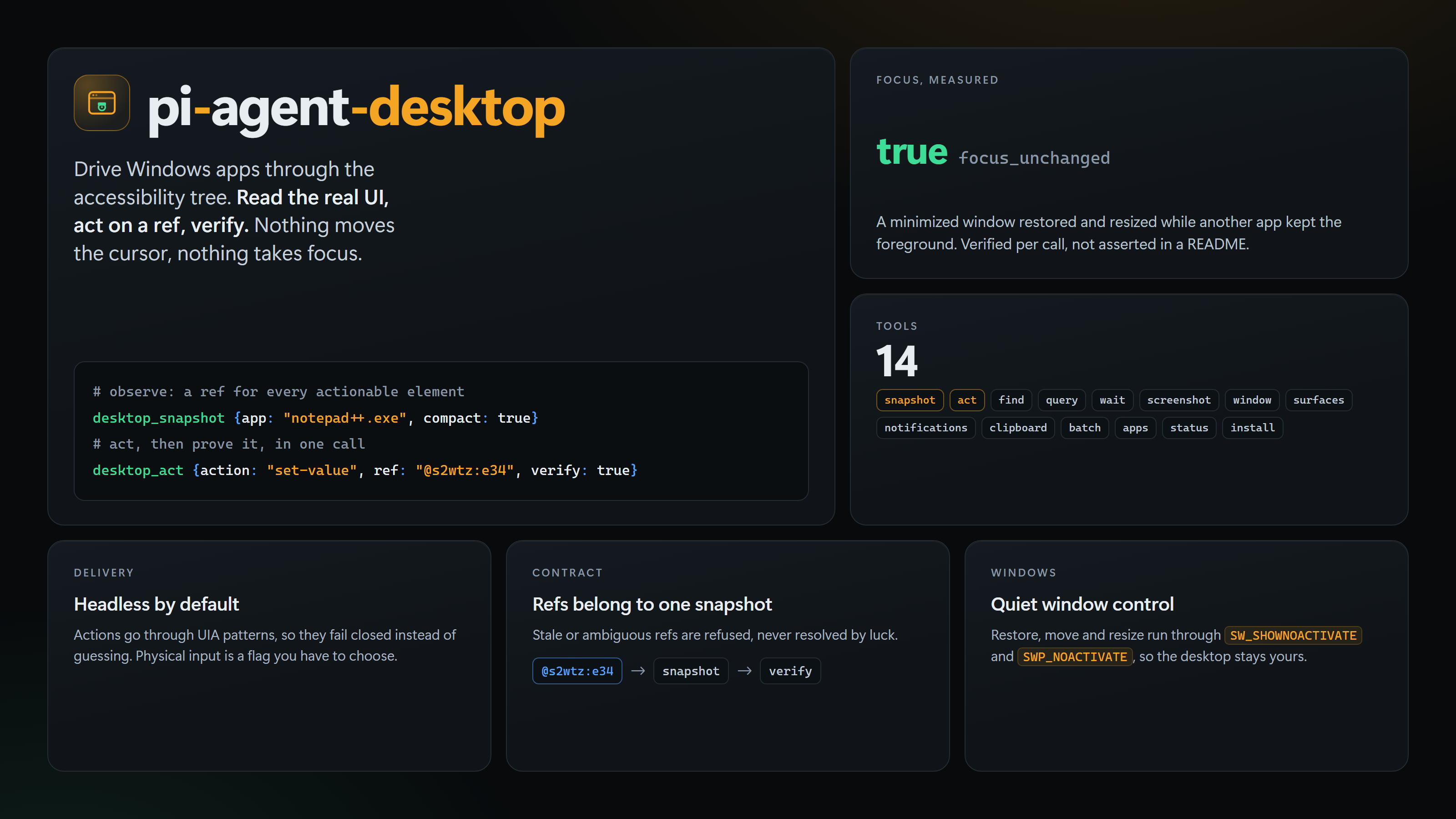
Pi has shell, files and a browser. What it lacks is a way to touch the apps that never grew a command line: the settings panel of a tool that ships as an installer, a counter in a desktop client, a dialog that only exists as pixels and accessibility metadata. This extension adds that, and it does it without taking the desktop away from you.
It wraps the agent-desktop CLI. A snapshot reads a window's real accessibility tree and returns a ref for every element an agent can act on. You act on a ref, then read the element again to prove what changed. Because an action names an element instead of a coordinate, a click lands on the row it was aimed at, and typing goes to the control you chose rather than wherever the cursor happened to sit.
Requirements
Windows 10 or 11 on x64 or ARM64, inside your signed-in interactive session. Accessibility permission is already granted there, and nothing needs to be enabled: automation: not_required is the normal answer on Windows.
The agent-desktop CLI has to be on the machine, since this extension drives it rather than reimplementing it.
npm install -g agent-desktop
Install
pi install npm:pi-agent-desktop
The package ships a prebuilt Win32 helper and rebuilds it from src/winwin.cs during install, using the .NET Framework compiler that ships with Windows. Newer npm releases ask before running an install script, and skipping it is fine: the shipped copy is used instead. If the helper is unavailable, restore, move and resize need allow_focus: true before using the CLI. npm run build:helper rebuilds it, which matters on an architecture the shipped copy does not match.
Start a session and ask for the status once before trusting anything else.
desktop_status
{
  "ok": true,
  "data": {
    "permissions": { "accessibility": { "state": "granted" }, "automation": { "state": "not_required" } },
    "platform": "windows",
    "supported_surfaces": ["window", "focused", "sheet", "menu", "start-menu", "taskbar", "system-tray", "action-center"],
    "version": "1.0.2"
  }
}
The loop
Three calls cover most of the work: read the window, act on one element, read it again.
desktop_snapshot  { "app": "notepad++.exe", "interactive_only": true, "compact": true, "skeleton": true }
desktop_act       { "action": "set-value", "ref": "@s2wtzauphohml8:e34", "verify": true }
verify: true costs one extra snapshot and returns the region the action touched, so the result is evidence instead of a claim. Refs are qualified (@<snapshot_id>:eN) and belong to the snapshot that produced them. When the UI moves under you, the CLI answers STALE_REF or AMBIGUOUS_TARGET and the extension passes that through instead of picking a candidate and hoping.
Two habits make this reliable. Take a skeleton snapshot first on a dense window, then drill into one region with root, because a full tree of a chat client is thousands of nodes. And use desktop_wait after anything asynchronous, since a fixed sleep is a race.
Tools
| Tool | What it answers |
|---|---|
desktop_status | Version, permissions, supported surfaces, and whether automation is usable at all |
desktop_apps | Which apps own a window, with ids, titles, bounds and minimized state |
desktop_snapshot | The real UI as roles, names, states and a ref per actionable element |
desktop_find | Where the element with this role, name, value or automation id is |
desktop_act | Do one thing to one element or send one key combo, optionally verified |
desktop_query | Read one property or state of one ref, the cheap way to prove a change |
desktop_wait | Block on an element, text, window, menu or notification instead of sleeping |
desktop_screenshot | A PNG you can look at, including a covered window, rendered offscreen |
desktop_window | Launch, quit, focus, resize, move, minimize, maximize, restore. Also reads the foreground |
desktop_surfaces | App surfaces, shell surfaces such as the taskbar, and display geometry |
desktop_notifications | List, dismiss or act on Windows notifications |
desktop_clipboard | Read, replace or clear the clipboard |
desktop_batch | Several commands in one process, and the escape hatch for anything without a tool |
desktop_install | Resolve, verify or install the CLI and build the helper |
Full parameter reference: docs/tools.md.
Focus
Semantic actions are handled by the accessibility API and never touch the foreground. The parts that do take the foreground are the window operations, because the ordinary Win32 calls activate: ShowWindow(SW_RESTORE) and SetForegroundWindow both pull focus away from whoever is using the machine.
So desktop_window sends restore, move and resize through the bundled helper, which uses SW_SHOWNOACTIVATE, SWP_NOACTIVATE and SetWindowPlacement instead. Those bring a minimized window back and place or size it while another app keeps focus. Each call reports focus_unchanged, and desktop_window with action: "foreground" reads which window holds the foreground, so the claim can be checked rather than believed.
focus, maximize, launch and opening a shell surface can take the foreground. They need allow_focus: true, as do the CLI fallbacks for restore, move and resize. The same gate applies inside desktop_batch.
Limits
A minimized window cannot be driven, and per-app behaviour differs enough that the first attempt is sometimes wrong. desktop_window with action: "restore" fixes the minimized case without stealing focus.
Chromium and Electron windows read thin until they settle, so a longer timeout_ms is usually better than concluding the tree is empty. Some apps ignore accessibility actions entirely, and canvas, games and DirectX surfaces expose almost nothing: those need real input, which no in-session tool can deliver without taking your desktop. A child Windows session or a virtual machine is the answer there, and this package does not provide one.
Windows that run elevated ignore input from a non-elevated process. A tray-only app owns no window and will not appear in desktop_apps.
Snapshots and screenshots contain whatever is on screen, which is often private. Keep them out of public logs and uploads.
Attribution
Tool behaviour, command set and CLI documentation belong to vercel-labs/agent-desktop, licensed Apache-2.0. This package wraps the published CLI and ships none of its binary. The Win32 helper in src/winwin.cs, the packaging and the focus policy are local work.
License
MIT. See LICENSE.