
Install
Install with PiG
pig install npm:@lazco/pi-rich-model-selectorInstall with Pi
pi install npm:@lazco/pi-rich-model-selectorPackages run code with your permissions and influence agent behavior. Catalog inclusion is not a security audit. Review the source before installing a third-party package.
Video
Declared by the package manifest. Open the file ↗
Pi manifest JSON
The pi field of package.json.
{
  "image": "https://lazco-public-15298932ec.pub.t4.txg1.lazco.cloud/pi-rich-model-selector/picker.png",
  "video": "https://lazco-public-15298932ec.pub.t4.txg1.lazco.cloud/pi-rich-model-selector/Demo.mp4",
  "extensions": [
    "./src/index.ts"
  ]
}
README
Written by the package's publisher, shown as published in version 0.7.1 (README.md). PiG does not review it.
pi-rich-model-selector
Pi extension: a model picker with context size, price, thinking level, and key state, and starred models in your order.


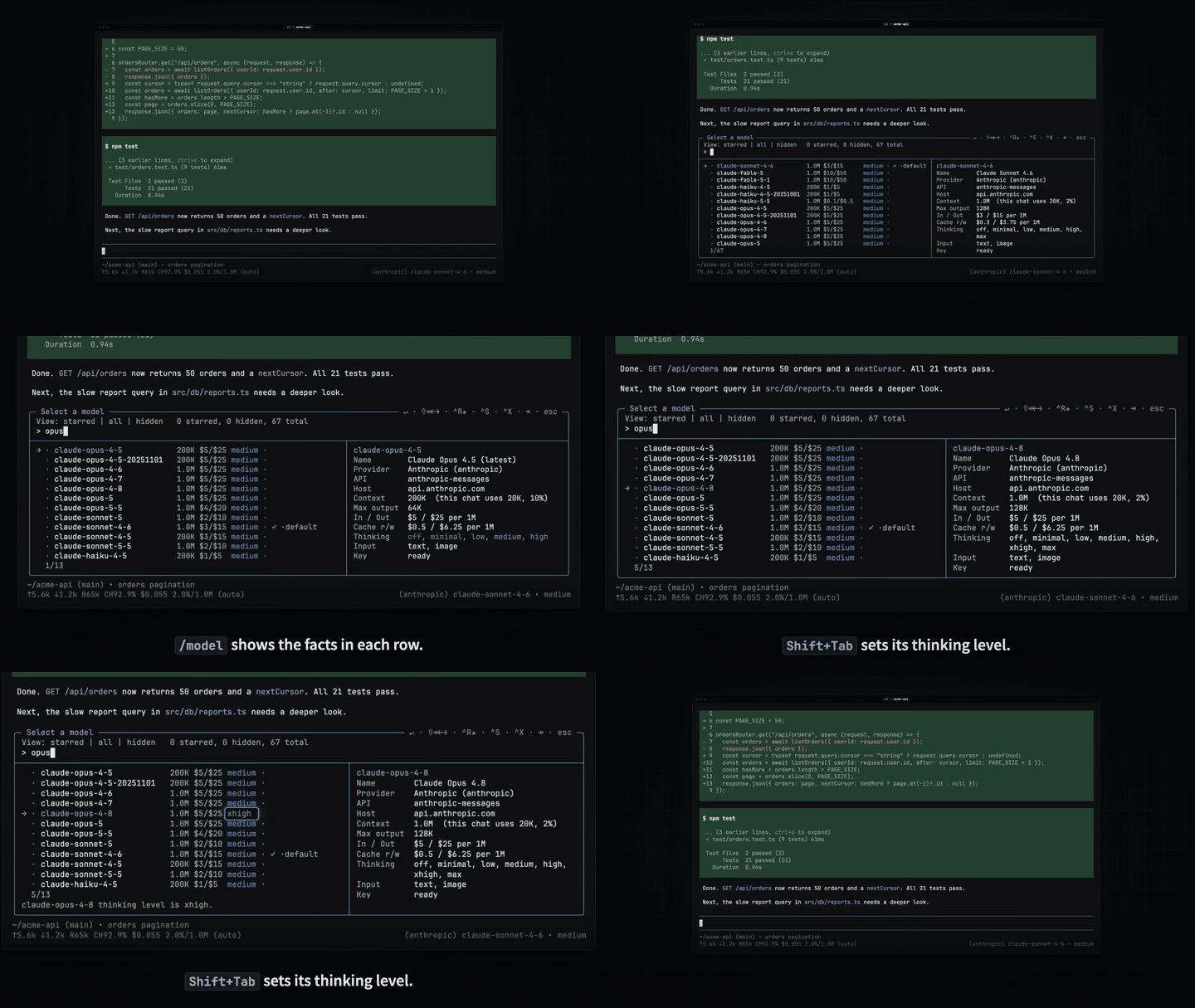
Demo video · Installation · Usage · Thinking level · Stars · Files · Limitations
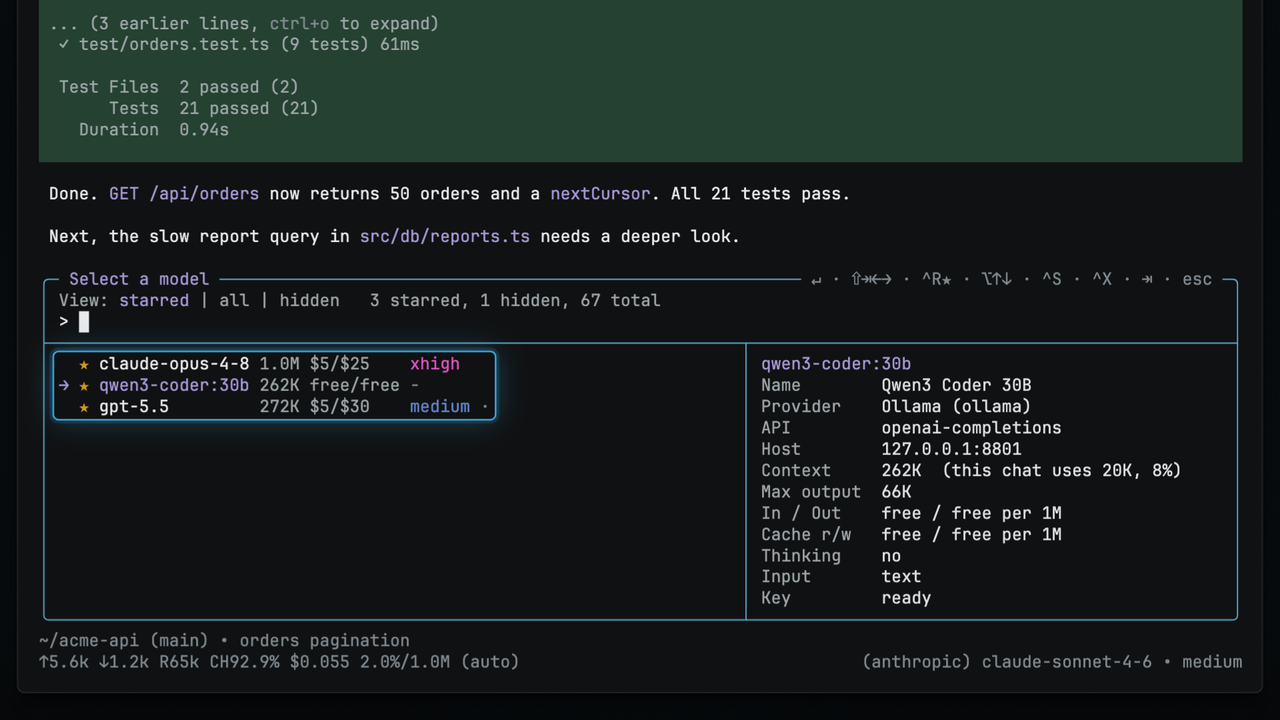
The model picker of pi shows the model id, the provider, and the name.
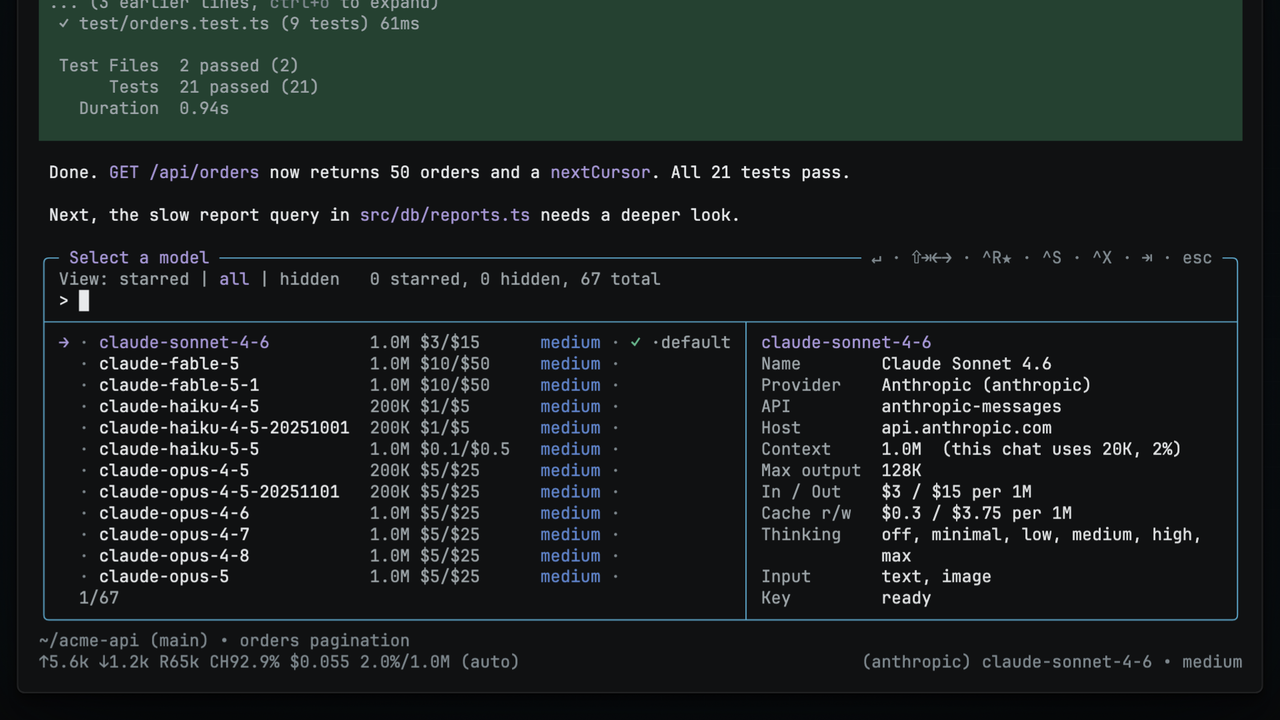
This picker also shows the facts that help you choose: the context size, the price, the thinking level, and if the model has a key.
It replaces /model and the model picker key of pi.
Highlights
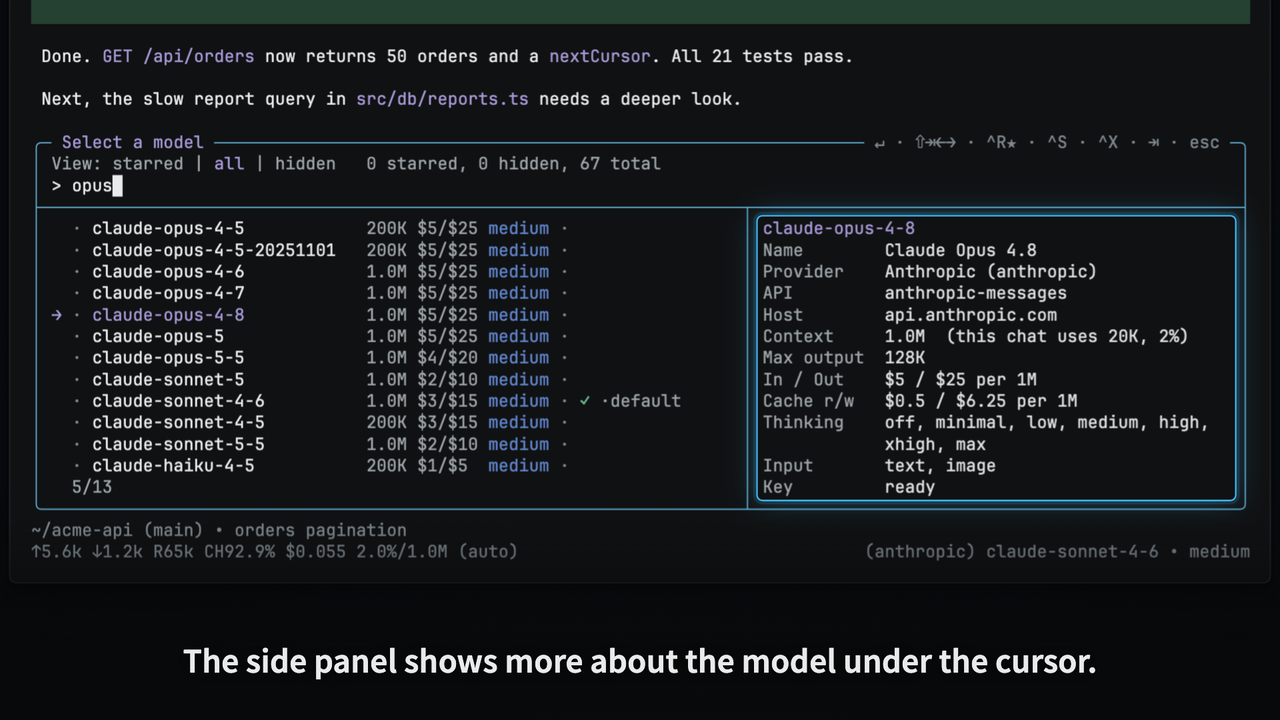
- Facts in each row. Each row shows the context size, the price for 1M input and output tokens, the thinking level, and the key state. A side panel shows more facts about the model under the cursor.
- A thinking level for each model.
Shift+Tabsets the level of the model under the cursor, and pi applies it when you switch to that model. See Thinking level per model. - Stars in your order.
Ctrl+Rstars a model, andAlt+UpandAlt+Downsort the starred models. See Star and sort models. - Fewer rows.
Ctrl+Xhides a model that you do not use. See Hide a model. Ctrl+Pin your star order./models syncwrites your starred models into theCtrl+Pcycle of pi. See Make Ctrl+P follow your star order.- Opens at once. The picker shows the models that pi already knows, and gets a fresh catalog from each provider in the background, for at most 15 seconds.
Demo video
The 60-second video shows the install, the facts in each row, the side panel, the thinking level, stars and their order, hidden models, and /models sync with Ctrl+P.
Click the image to play the video.
Installation
You need pi and Node.js 22.19.0 or later.
pi install npm:@lazco/pi-rich-model-selector
Then run /reload in pi.
To check the install, run pi list.
The list of user packages shows npm:@lazco/pi-rich-model-selector.
To try the picker for one session only, without an install:
pi -e npm:@lazco/pi-rich-model-selector
Old package name. The package
@lazco-studio/pi-rich-model-selectorstopped at0.4.0. If you have the old package, remove it before you install the new one:pi uninstall npm:@lazco-studio/pi-rich-model-selector
Usage
Type /model or /models, or press Ctrl+L, to open the picker.
To open the picker with a filter, add a word:
/model opus
The extension replaces the built-in /model command.
Ctrl+L is the key of the app.model.select action of pi, so a key that you bind to that action opens the picker too.
The picker looks like this:
╭─ Select a model ── ↵ · ⇧⇥←→ · ^R★ · ⌥↑↓ · ^S · ^X · ⇥ · esc ─╮
│ View: starred | all | hidden  2 starred, 1 hidden, 3 total   │
│ >                                                            │
├───────────────────────┬──────────────────────────────────────┤
│ → ★ <model-id>        │ <model-id>…                          │
│   ★ <other-model-id>  │ Name    …                            │
╰───────────────────────┴──────────────────────────────────────╯
The panel on the right shows more facts about the model under the cursor.
On a narrow terminal, the panel moves below the list.
Press Enter to use the model under the cursor, or Esc to close the picker and keep your model.
What a row shows
→ ★ <model-id> 1.0M $5/$25 xhigh ✓ ·default
| Mark | Meaning |
|---|---|
→ | The cursor. |
★ | The model is starred. |
· | The model is not starred. |
✗ | The model is hidden. |
1.0M | The context size, in tokens. |
$5/$25 | The price for 1M input tokens and 1M output tokens. |
xhigh | The thinking level of the model. A dot after it means that the level comes from your global default. A - means that the model cannot think. See The dot after the level. |
✓ | Pi uses this model now. |
·default | Pi starts with this model. |
·no key | The model has no API key. Run /login to add one. |
Views
Press Tab to go to the next view.
| View | What it lists |
|---|---|
starred | Your starred models, in your order |
all | Each model, except the hidden models |
hidden | Only the hidden models |
Keys
| Key | Action |
|---|---|
| Type text | Filter the list |
Up / Down, PageUp / PageDown | Move the cursor |
Shift+Tab, Shift+Left / Shift+Right | Change the thinking level |
Ctrl+R | Star the model, or remove the star |
Alt+Up / Alt+Down | Move a starred model up or down |
Ctrl+X | Hide the model, or show it again |
Ctrl+S | Make the model the startup model, or clear it |
Tab | Go to the next view |
Enter | Use the model under the cursor |
Esc or Ctrl+C | Close the picker and keep the model that you use now |
Each key follows your keybindings.json or the /models bind command, and the key hint follows the key.
On macOS, Alt is the Option key.
See Keys for the filter box keys and for how to change a key.
Commands
| Command | What it does |
|---|---|
/model [<text>] | Open the picker, with <text> in the filter box |
/models | Open the picker |
/models sync / /models unsync | Write your star order into the Ctrl+P cycle, or undo it. See Make Ctrl+P follow your star order. |
/models hide / /models show | Remove the /model line from the command menu, or put it back |
/models keys | Show the 4 custom key binds |
/models bind <action> <key> | Bind star, hide, levelDown, or levelUp to a key. See Change a key. |
Thinking level per model
Press Shift+Tab to move the level of the model under the cursor up, or Shift+Left and Shift+Right to move it one step.
The picker saves the level for that model, in the modelThinkingLevels field that pi reads.
Pi applies the level when you switch to that model, from the picker or with Ctrl+P.
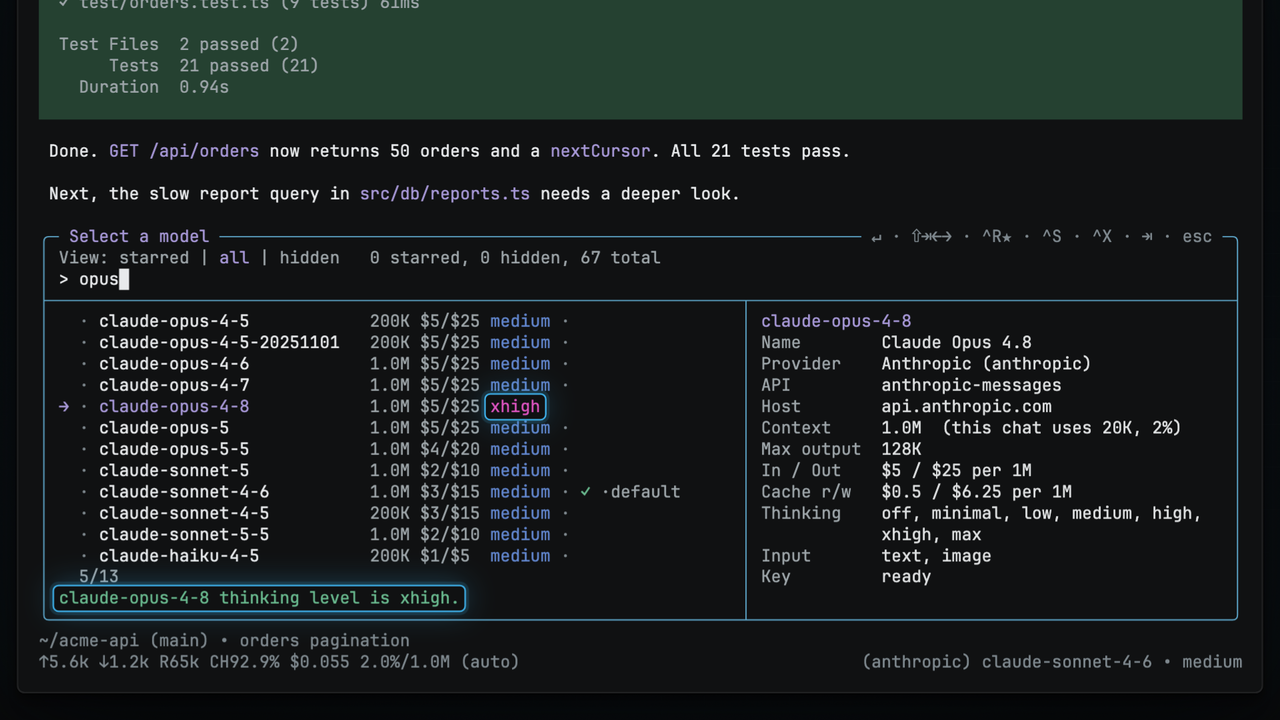
To set a model back to your global default, move its level onto the default.
The picker does not change your global default.
Use /thinking for that.
See Thinking levels for all the rules.
Star and sort models
- Move the cursor to a model.
- Press
Ctrl+Rto star it. - Press
Tabuntil the view showsstarred. - Press
Alt+UporAlt+Downto move the model.
These are the keys that the /scoped-models picker of pi uses to sort models.
The order applies only to starred models.
Hide a model
Press Ctrl+X to hide the model under the cursor.
A hidden model goes out of the all view.
To show it again, go to the hidden view and press Ctrl+X on the model.
- A star wins over a hide. When you star a hidden model, it shows again.
- When you hide a starred model, the star goes away.
- You cannot hide the model that you use now. Change to another model first.
Set the startup model
Press Ctrl+S on a model.
The row shows ·default at once, and pi starts with that model the next time.
Ctrl+S in pi's own picker also switches to the model and closes the picker.
This picker stays open and keeps your current model.
To clear the startup model, press Ctrl+S on it again, and restart pi.
Make Ctrl+P follow your star order
Ctrl+P steps through models in pi, in the order of the enabledModels list in settings.json.
Warning. Check your starred models before you sync.
enabledModelslimits which models pi can use, so after a sync only your starred models are available. To undo the sync, run/models unsyncand restart pi.
- Star the models that you want, in the order that you want.
- Run
/models sync. - Restart pi.
Hide the /model menu entry
Pi defines /model in its own code, so no setting can remove the command.
This extension replaces the command, so /model and /models open the same picker.
- Run
/models hideto remove the/modelline from the command menu. Both commands still work. - Run
/models showto put the line back.
Where your data goes
The extension saves its state in 2 files in your pi agent directory, ~/.pi/agent/.
| File | What it holds |
|---|---|
rich-model-selector.json | Your stars, your star order, your hidden models, your custom keys, and the menu setting |
settings.json | The thinking level of each model, the startup model, and the enabledModels list after a sync |
You can edit both files by hand, and you can run more than one pi session at a time. The picker reads both files each time it opens. Each write locks the file first and keeps the fields that the extension does not own.
Limitations
- An open picker does not follow file changes. To see a change from another session or from a hand edit, close the picker and open it again.
- A star from another session can go away.
Alt+UpandAlt+Downsave the order that the picker read when it opened. - The last write wins. When 2 sessions write at the same moment, the second write stays.
- No
PageUpandPageDownin fullscreen mode. Pi gives these keys to the transcript. To page the list, see Page the list in fullscreen mode.
The picker adds to the editor of pi and does not replace it.
So editor extensions such as @xynogen/pix-display continue to work, in any load order.
Contributing
To report a bug or ask a question, open an issue on GitHub. The build, verify, and release steps are in AGENTS.md. See CHANGELOG.md for the changes in each release.